Module 0
Start here
Who we are, what this guide is, and what it isn't.
9 min read
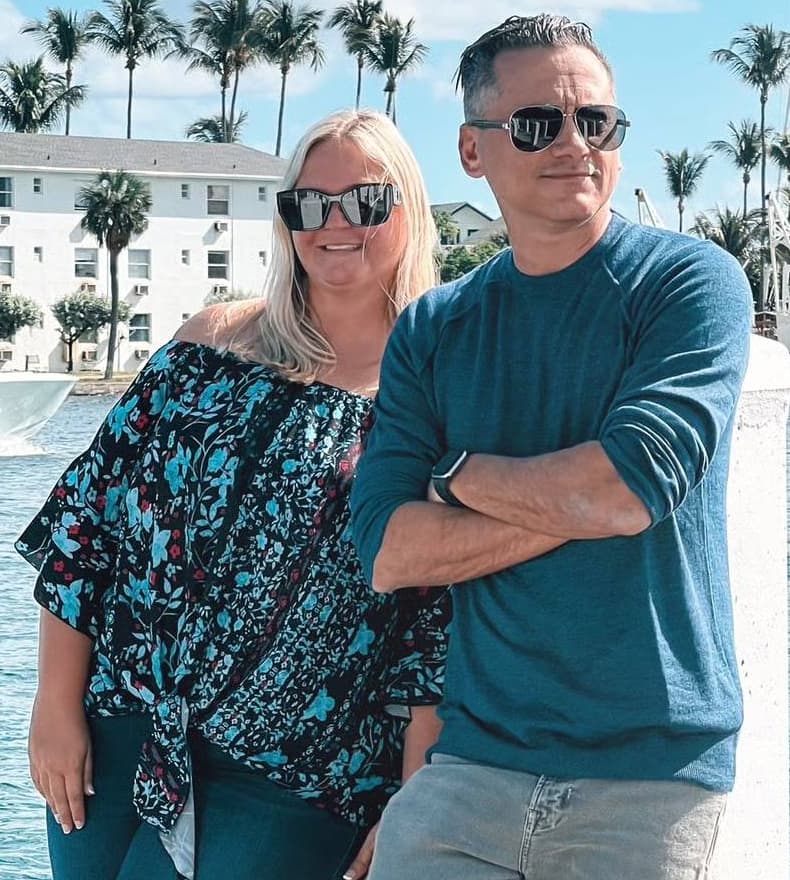
This is the guide we wish existed when Amazon invited us into the Influencer Program. It's free, and it's built from two things: what Michelle and I have actually done to turn this into a multiple six-figure business, and everything that changed in 2025 and 2026 (and a lot changed).
You won't find "passive income" promises here. The Amazon Influencer Program is a real business. It can pay very well, it takes real work, and Amazon changes the rules often. If someone tells you it's easy money, they're usually selling you a course that costs $997.
Our story, short version. We actually started on the other side of Amazon, as sellers, back in 2016. Then Michelle and I started Gominplanet as a travel account on Instagram, and it did well. We'd been Amazon Associates for years and made a few bucks here and there with links. No blog, no website, just the Instagram. Around 2019–2020, Amazon invited us into the Influencer Program. I didn't even know what it was.
It was right up our alley, though. We already knew how to shoot video and talk to camera, and doing reviews looked fun. Back then almost nobody was in the program. Our first month we made 79 videos and earned a few thousand dollars.
Let's be real: that was a different era. You won't get those numbers from 79 videos today. But here's what happened after: a few thousand, then consistently over $5K a month, then over $10K a month within six or seven months. We haven't dropped under that since. Our best months got close to $35K. (Those are commission numbers, before taxes and before what we spend on products.)
And yes, we were lucky to catch the wave early. Let's not pretend otherwise. It's still a viable business today, but it needs more preparation and better systems than it did back then. The program is getting more saturated every year.
We've seen this before, though. There was a big wave in 2022 and 2023, and most of those accounts are long gone. Too many newcomers are chasing the next shiny thing and an easy buck, and they'll be disappointed and quit within a few months. The ones who stick with it are the ones who end up successful.
Every story is different. What got us there wasn't luck alone. It was volume, not being precious about niches, and reinvesting our profits into products we'd researched. That's what this guide is about.
Never done this before? Start here
If you've never made a penny online, none of this will sound familiar yet. Here's the whole business in plain English.
What you actually do: you film a short video of a product, upload it to Amazon, and Amazon can show that video on the product's page. When a shopper watches it and buys, Amazon pays you a percentage of the sale. That's it. No inventory, no shipping, no customer service.
The words you'll keep seeing:
| Word | What it means |
|---|---|
| Amazon Associates | Amazon's affiliate program. You get special links, and you earn a cut when someone buys through them. |
| Amazon Influencer Program | The layer on top of Associates for people who make content. It's what lets you upload video reviews and get a storefront. |
| Storefront | Your own page on Amazon (amazon.com/shop/yourname) where your videos and product lists live. |
| Onsite | Your video shown on Amazon's own product pages. You don't send the shopper; Amazon does. |
| Offsite | Traffic you send to Amazon yourself, with a link, from YouTube, Pinterest, Instagram, a blog, anywhere. |
| Commission | Your cut of a sale, as a percentage. It's small: roughly 0.5–4% on Amazon's own pages and up to 10% on links you share yourself, so the price of the product matters a lot. |
| ASIN | Amazon's ID code for a product, like B08XYZ1234. Every product (and often every color and size) has one. |
| Listing | The product's page on Amazon. |
| Carousel | The row of videos on a product page that shoppers can swipe through. Your video sits in there. |
| Creator Connections | Amazon's matchmaking system where brands offer you an extra commission (a bonus) to feature their products. |
| Seller / brand | The company selling the product. Often you're talking to an agent who works for them. |
| UGC | "User-generated content": videos you make for a brand to use, where they pay you and you hand the video over. |
How you get paid: Amazon adds up your commissions each month and pays about 60 days later. There's no salary and no hourly rate. A video you film today can keep earning for years, or earn nothing. That difference is what most of this guide is about.
What it costs to start: nothing but time, if you film things you already own. It gets more serious when you start buying products to review (Module 4), and we'll show you how we make that cost far less than it sounds.
Who this is for
- You just got approved (or you're about to apply) and you're thinking "OK... now what?"
- You've uploaded some videos and you're making $0 to a few hundred dollars a month, and you don't know why.
- You want to go from "side hustle" to "this pays real bills," including brand deals.
How to use this guide
Go in order the first time. Every numbered module ends with a short Do this list. Don't skip those; reading about videos doesn't make you money, but uploading them does.
As you read, you'll see three things that stand out from the normal text:
- A small blue tag that says Check your dashboard. That marks a rule or number Amazon changes. We've checked it as of September 2026, but confirm it in Associates Central or the Amazon app before you bet money on it.
- Yellow panels labeled "Seb & Michelle." Those are us talking: our own stories, our numbers, and how we actually do it. The rest of the guide is what we teach.
- Red "Myth / Reality" notes. Those clear up the things we see people repeat in Facebook groups every single day.
Quick answers
The questions we get asked most, answered short. Each one links to the full section.
How long until I see real money?
Longer than most people expect. A sale only shows up as commission once the product has shipped. Then Amazon pays each month's earnings about 60 days after that month ends. So a sale today reaches your bank more than 60 days from now. And it only arrives if your bank and payout details are set up everywhere you earn: on both of your US store IDs, and in every other country's Amazon program you've joined, not just your US account. (Setup, troubleshooting.)
Do I need an LLC?
It depends on the business you want to run, how serious you're getting, and where you live. We did set one up. We live in the Caribbean, we formed our LLC there too, and it makes sense for us tax-wise. But this is never tax or legal advice: talk to a CPA.
If you do want one, this is the company we used and really liked:
That's a referral link: we may earn something if you use it, at no cost to you.
Can I do this outside the US?
Absolutely. It's open to anyone, and a US Amazon Influencer account and storefront can be run by someone living outside the United States. You'll complete the tax interview for wherever you live when you set up payments.
- Getting products is the harder part. Creator Connections samples ship to US addresses, so they're more complicated to receive from abroad (Module 5).
- Buying your own is simpler. A lot of the products sold on Amazon US also exist in your region. Buy it locally, find the matching ASIN on amazon.com, and tag your video to that.
- If your followers are spread around the world, use links that send each of them to their own country's Amazon (OneLink or Passport).
Can I use the same video on YouTube, TikTok or Instagram?
YouTube: yes, do it. We recommend every Amazon influencer post their Amazon videos straight to YouTube. It does two things. It makes a searchable video that shows up on Google and YouTube. And it protects you: if someone steals your video on Amazon, you have a dated, public upload under your own account that shows you published it first.
And YouTube is its own business. A lot of Amazon influencers are building great audiences there. You can grow a channel and, once you qualify for YouTube's Partner Program, get paid on your views. And brands search YouTube for creators. Put a clear way for brands to contact you in every video description, and you'll get far more brand reach just from being there. (MVP adds that brand contact line to every YouTube description it writes for you.)
TikTok is a different story. TikTok is vertical, and for Amazon we recommend shooting horizontal, so the same video looks a little weird there. Reframe it to vertical first. MVP's Clip Factory (on Pro) does that for you, with a center crop or a split screen, and can post it to TikTok directly.
Wherever you post, add the channel to your website list before you put Amazon links there, and follow each platform's own rules for links and disclosure (Module 8).
Should I upload shoppable photos to Amazon?
We wouldn't focus on them. Photos have given us very little commission, if any. On our storefront, videos come first, idea lists second. Videos drive most of our commissions, if not all of them.
Amazon has been known to push photos and reward them with incredible views: a hundred thousand views on a picture. But views aren't commissions. Nobody follows through, because Amazon is mostly using that content for its own promotion, and you don't get credited for it.
If you have good photos, post them on your social media with your links instead, not on your storefront.
Do I have to show my face?
No, you don't. There are a lot of very successful creators with faceless accounts, and you can absolutely make faceless videos and do well with them.
Our take: it's a lot more personable with your face in it. The basics of sales is building rapport, and that's much easier when you're talking straight to someone on camera and they can see who you are. That's why we show ours in almost every video (Module 3).
What this guide won't do
It won't teach you tricks that break Amazon's rules. We've been doing this for years because we protect our account. Buying through your own links, disguising where your links go, fake reviews, and "accept everything and post nothing" might work for a month. Then they cost you everything.
Do this
- Bookmark this page. You'll come back to it.
- Bookmark the pages you'll use every day: Associates Central (your dashboard), the Operating Agreement and the Program Policies.
- Write down your real weekly time budget (hours) and your monthly product budget (dollars, even if it's $0). You'll need both numbers in Module 4.
- Read Module 1 before you film anything else.
Module 1
How the money actually works
The six ways you get paid, the real per-video math, and what the latest rule changes did.
10 min read
Most beginners can't explain where their money comes from. That's why they can't fix it when it stops. Learn this module and you'll understand this business better than most of the people posting in those Facebook groups.
The six income streams
| Stream | How you earn it | What it pays |
|---|---|---|
| Onsite commissions | Amazon shows your video (or idea list/photo) on a product page, a shopper watches, then buys that product. | Onsite rates. These are lower than normal link rates (see table below). |
| Offsite link commissions | Someone clicks your link (storefront, YouTube, Pinterest, a DM) and buys within 24 hours. | Standard Associates rates, 1–10% by category. |
| Creator Connections (CC) bonuses | A brand runs a campaign that pays an extra commission (10% minimum, 15–20%+ common) on top of your base rate. | Paid with your normal earnings. |
| Creator Rewards | Amazon sets monthly targets for your total shipped sales. Hit one and you get a cash bonus on top of your commissions. You have to be enrolled (see below). | A flat bonus per target you hit. |
| Bounties and promotions | The Amazon Bounty Program (Prime sign-ups, Audible trials and so on) and occasional category boosts around Prime Day. | Flat amounts or temporary higher rates. |
| Paid brand deals | A brand pays you directly for a video, photos, or content rights. | Whatever you negotiate. Not Amazon money. |
The pros stack all six. Beginners usually only think about the first one.
Creator Rewards: the bonus most people never turn on
Almost nobody talks about this one, and it's free money for sales you're already making. Amazon runs Creator Rewards in periods (usually a month or two). For each month in the period, you get a ladder of shipped revenue targets. Reach a rung and Amazon pays you a flat bonus on top of your normal commissions.
Shipped revenue means the total value of what shipped through your links, not your commission. So the targets look big, but they're counting sales, not your cut.
Here's how a ladder works, with made-up round numbers (your real targets are private to your account, and so are ours):
| Shipped revenue in the month (example) | Bonus |
|---|---|
| $5,000 | $100 |
| $7,500 | $150 |
| $10,000 | $250 |
| $15,000 | $450 |
Your targets are set for your account, so a newer account will see smaller numbers than an established one. Don't compare with anyone, just check yours. Check your dashboard
How to find it:
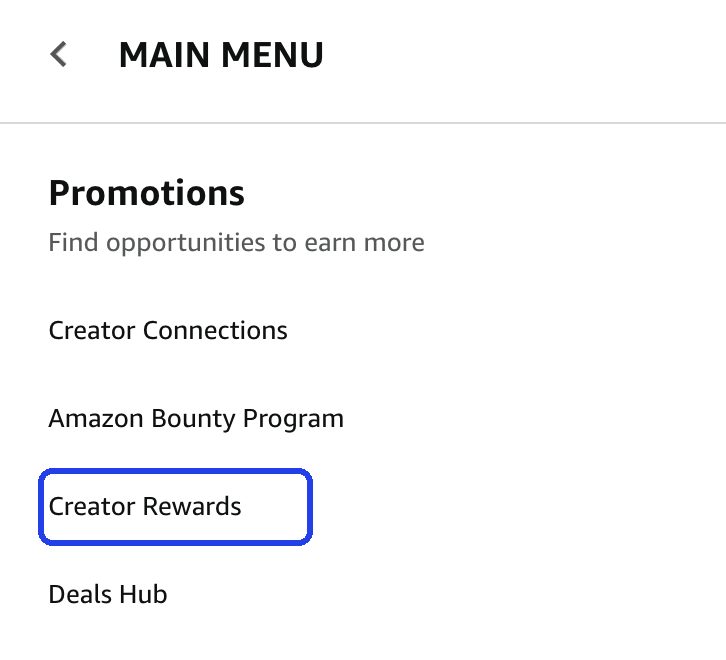
- In Associates Central, open the menu (the three lines at the top right). Under Promotions, click Creator Rewards (direct link).
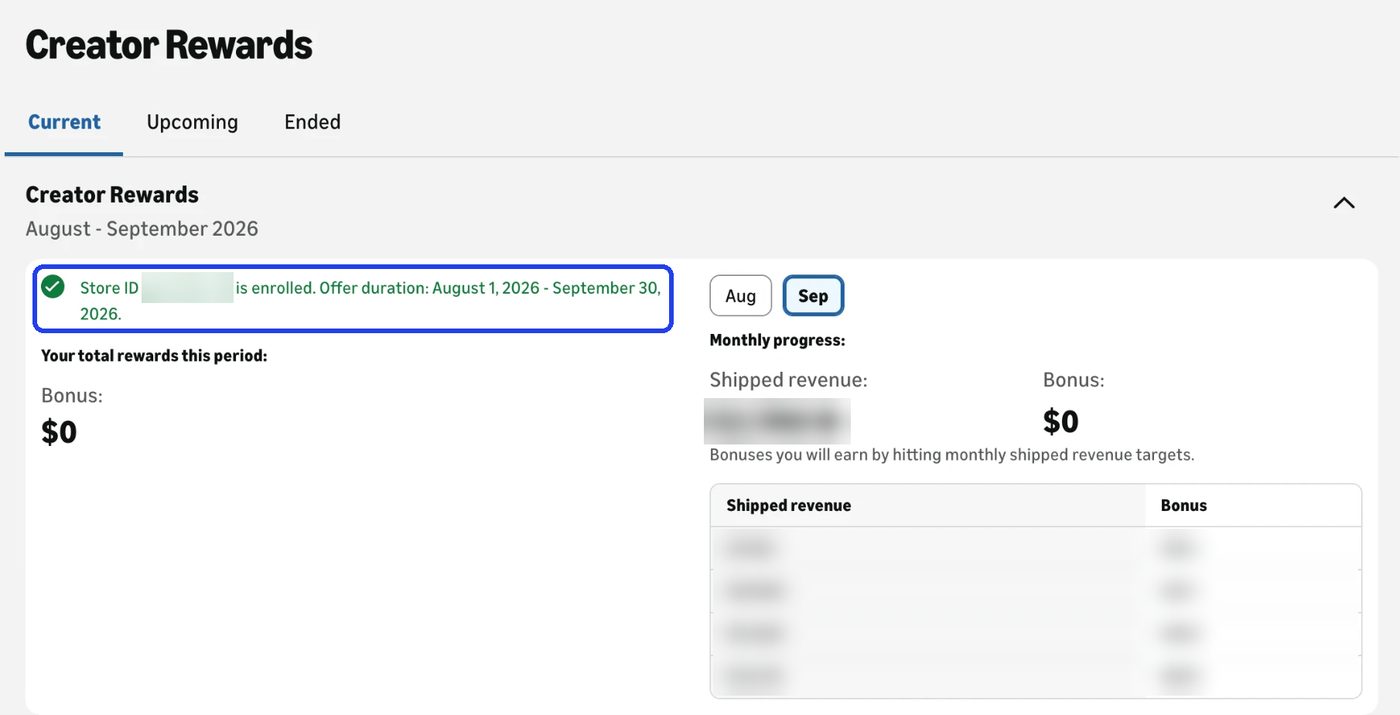
- On the Current tab, look for a green line saying your Store ID is enrolled. No green line means you aren't earning it. Enroll.
- Check the Upcoming tab too, so you're enrolled before the next period starts.
- Switch the StoreID dropdown to your other store ID and check it there as well.
- Each month, look at Monthly progress to see how close you are to the next target. If you're close near the end of a month, that's the week to push your links offsite.
While you're in that menu, the other Promotions are worth a look too: Creator Connections (Module 6), the Amazon Bounty Program, and the Deals Hub.
Creator Stars: Bronze, Silver, Gold and Platinum
Creator Stars is Amazon's tier program for influencers. It's separate from Creator Rewards: it pays no bonus money, but it gives you a badge and perks that grow with each tier. You're enrolled automatically once you have at least $1 in shipped revenue or 100 link clicks in a quarter.
How points work. Every quarter (three months), you earn:
- 1 point for every $100 in shipped revenue (the total value of what shipped through your links, not your commission).
- 1 point for every 1,000 link clicks, up to 49 points a quarter. So clicks alone can never get you past Bronze: Silver and above take sales.
Points expire at the end of every quarter, so every tier has to be earned again. Reach a tier and it shows up within 24 hours, then lasts until the end of the next quarter. Hit Gold on February 15 and you keep it through June 30.
| Tier | Points in a quarter | Roughly, in sales | What you get |
|---|---|---|---|
| Bronze | Enrolled | $1 shipped, or 100 clicks | A Bronze badge, Creator Connections, and the top deals list by email on day one of big shopping events |
| Silver | 50 | $5,000 shipped | A Silver badge and early access to that deals list |
| Gold | 250 | $25,000 shipped | A Gold badge, and the dates and details of big shopping events ahead of time |
| Platinum | 1,000 | $100,000 shipped | The only badge shown on your public storefront, extra early access with confidential and exclusive deals, invite-only office hours, and surprise rewards |
Each tier keeps everything from the tiers below it. The "roughly, in sales" column leaves out clicks, which can add up to 49 points. Your tier is on your Associates Central and Creator Central homepages. Check your dashboard
- Subscribe to Amazon's creator marketing emails, and check your spam folder. Most of the perks arrive by email, and Amazon says you won't get them otherwise.
- Don't chase a badge. The tiers follow your sales, they don't pay you. Early access to shopping event deals is useful, though: it's what lets you film and line up links before Prime Day or Big Deal Days.
- Be wary of longer perk lists online. Some blogs list gift boxes, free books and promo codes. Amazon's own page lists what's above, and says benefits can change without notice.
Onsite rates (the ones nobody tells you about)
These are Amazon's published onsite rates (Table A). They're what you earn when a shopper buys after watching your video on the product page. Check your dashboard
| Onsite rate | Categories (examples) |
|---|---|
| 4% | Luxury Beauty |
| 3% | Furniture, Home, Home Improvement, Lawn & Garden, Pets |
| 2% | Beauty, Pantry, Musical Instruments, Business & Industrial |
| 1.75% | Tools |
| 1.25% | Kitchen, Sports, Automotive, Health & Personal Care, Digital Music, Physical Music, Handmade, Digital Videos |
| 1% | Apparel, Shoes, Jewelry, Headphones, most "other" categories |
| 0.75% | Outdoors |
| 0.5% | Toys, Baby, Books, Grocery, PC, TVs, Video Games |
There's a second table on that same page, for Creator Ads, and almost nobody mentions it. When your content runs in an ad placement rather than organically on the product page, the rates are higher, topping out around 5%. You don't control which one applies, so don't plan around it. Just know that when your onsite earnings look better than the table above says they should, this is usually why.
Read the first table again. A $20 toy at 0.5% pays you 10 cents per onsite sale. A $150 patio set at 3% pays you $4.50. Same effort to film. This is why product selection (Module 4) matters more than how pretty your video is.
The per-video math
Here's the benchmark we use to judge a catalog today. This counts all your Amazon earning streams (onsite, links, Creator Connections, bounties) during a normal, non-Q4 month:
- $1 per video per month: low to average.
- $2 per video per month: average to high.
- $3–4 per video per month: high.
Anything above that is an outlier, not a plan.
How long a video earns depends almost entirely on the product. Pick something that disappears from Amazon in two months and the video dies with it. Pick an evergreen product and it can pay you daily for years: we have staple products we filmed years ago that are still earning today. Module 4 covers how to spot them.
That means income ≈ (live, earning videos) × (average per video). You can move either lever: more videos, or better videos on better products. The people stuck at $100 a month usually have plenty of videos on products that can't pay.
Myth: "Onsite videos earn your normal commission plus a bonus."
Reality: Onsite rates are lower than link rates, and since April 14, 2026 they only pay on the exact product (same ASIN variant) the shopper watched. The bonus comes from Creator Connections, not from being onsite.
The latest rule changes
A lot of people panicked when these landed. Here's what actually happened, in plain words:
- April 14, 2026, new Operating Agreement (see exactly what changed). Onsite commissions now pay only on "direct qualifying purchases" (the same product variant you featured). The old "halo" (earning on everything else in the shopper's cart) is gone for onsite. Offsite link clicks still appear to earn on the other items in the cart.
- Paid ads don't count. Purchases that come from paid or boosted ads pointing to Amazon no longer qualify.
- 180-day window. An item has to ship and be paid for within 180 days to earn.
- "Original content" rule. Your content needs real commentary, analysis, or transformation. Low-effort AI filler is a risk now.
- Reporting got thinner. Trade press (Logie, Karooya) reported a US reporting reset around March 9, 2026, with less order- and campaign-level detail in the dashboard. Amazon didn't publish a notice, so treat the date as reported rather than official.
- The promo code page is gone. Amazon removed the central page where Associates could get bulk affiliate discount codes, which sellers used to set up really good prices. The Deals Hub took its place (Module 8). If a guide or video tells you to grab codes from Associates Central, it's out of date.
- Rate cuts in the news (Adweek, May 2026) mostly hit big publishers with custom deals, not the standard public rate table.
Halo, explained for anyone new. Halo sales were the heyday of onsite and Creator Connections. That's over, so don't build around it. Today you get paid on the sales you directly influence, from a video or a link.
On onsite, "directly" means it: someone watches your video (in our experience, at least about 30 seconds of it) and buys that product right away, without watching or clicking anything else. Then you get the commission.
On offsite, halo still seems to exist. If my blog link sends someone to Amazon and they add more items and check out, I can potentially earn on the whole cart. That's one more reason to build offsite traffic (Module 8).
Bottom line: the lazy version of this business got harder. The real version (good products, good videos, CC, brand deals) still works.
Our take on the "is it dead?" panic. We've watched this cycle before. In 2022, a big wave of people joined after some gurus mass-marketed the program. Most of those accounts were gone or dormant within 18 months. We expect this latest wave to churn the same way. That's not a reason to quit. It's a reason to build properly, because the people who stay are the ones who get paid.
Our revenue mix right now
Here's roughly where our commission income comes from as we write this in September 2026. This is a slow month for us, and it's worth saying why: it isn't the season. September is normally a decent month (Module 8). It's slow because Amazon started overhauling Creator Connections this month, after too many creators used automated tools to claim campaigns they never made content for. Our CC income pulled back with it. Module 6 has the detail.
| Stream | Share |
|---|---|
| Creator Connections | 47% |
| Onsite | 35% |
| Brand deals | 10% |
| Offsite links | 5% |
| YouTube | 3% |
That doesn't include resale (Module 4). Resale is extra, and more and more of that cash is what we reinvest into products, so we don't have to touch commission money.
How it shifted: before April 2026, onsite was a little higher, and CC and onsite were almost 50/50. CC grew all through the summer of 2026, then shrank in September when the program changed. In Q4 we expect onsite, offsite and YouTube to grow a lot; brand deals will probably stay about the same.
That swing is the lesson, not the numbers. One program change moved our single biggest income stream inside a month. It's exactly why we keep telling you to build offsite.
What we're working on: growing YouTube and offsite. We recommend everyone does, because traffic you own brings way more stability to your numbers than depending on Amazon's placement alone.
Do this
- Open the onsite rate table. Screenshot it and keep it handy.
- If you already have videos: divide last month's onsite earnings by your number of live videos. That's your per-video number. Write it down; we'll improve it.
- Pick your top 3 earning categories from the table and keep them in mind for Module 4.
- Open Creator Rewards and make sure your Store ID says it's enrolled.
Module 2
Getting approved and unlocked
Associates vs Influencer, applying, the onsite review, and exactly what to do after the confetti.
10 min read
"I got approved, now what?" is the most common question in every beginner group. Let's clear it up.
Associates vs Influencer: what's the difference?
- Amazon Associates is the affiliate program: you get tracking links and earn when people buy through them. Applying isn't the same as being accepted: you have 180 days to refer 3 qualifying sales, and then Amazon reviews your application properly (your own orders don't count). Amazon's rule is here.
- The Amazon Influencer Program sits on top of that. It's for people with a social media presence. You get a storefront (amazon.com/shop/yourname), idea lists, the ability to upload video reviews that can appear on product pages (onsite), livestreams, and access to Creator Connections.
Since April 14, 2026, Amazon's agreement gives every Associate who completes registration a storefront and a Unique Creator Link, not just Influencer Program members. The lines are blurring. What still separates serious creators is the onsite video access. Check your dashboard
Applying
Apply here: Amazon Influencer Program sign-up. If you're not an Associate yet, you can join Amazon Associates here.
- Platforms Amazon accepts: YouTube, Instagram, TikTok, Facebook, and Pinterest (Amazon's own overview).
- Follower minimum: Amazon doesn't publish one. They look at content quality, engagement, and follower count together. Creators get approved with small but real audiences; engagement matters more than size.
- Timing: some platforms get a decision almost instantly; others take days or weeks.
- Rejected? Amazon says you can reapply. Fix what's weak first: post consistently for a few weeks, make sure your content looks like product/lifestyle content, and apply with your strongest account.
- Or try a different platform. Rejected with Instagram? Apply with your YouTube or Facebook account instead. Plenty of creators get in on their second choice.
- Never buy followers. Fake followers wreck your engagement rate, and engagement is what Amazon is looking at.
- Apply with the Amazon account you actually shop with. Your order history is part of who you are as a reviewer.
The part everyone misses: two store IDs
When you're approved you get two IDs:
- Your normal Associates tracking ID (for links).
- A separate Onsite Store ID (it starts with "onamz").
You have to add your payment and tax info to the Onsite Store ID separately. It doesn't copy over. We see people every week asking why they have onsite sales and no money. This is usually why. In Associates Central, switch the store dropdown at the top to your onsite ID to see those earnings. (Amazon's explanation of onsite earnings and the Onsite Store ID.)
Unlocking onsite: the 3-video review
To get your videos placed on product pages, you submit 3 video reviews that Amazon reviews by hand.
- Review can take anywhere from a few days to several weeks.
- Don't delete videos while they're in review. It can reset the clock.
- You get 3 rounds, and that's it. If you're not approved after 3 submissions, you're out, and you'd have to start over with a new account. So focus and get it right the first time. It isn't hard: pick the right products (Module 4) and follow the video rules (Module 3).
- Treat these 3 like a job interview. Pick simple products you can demo clearly, with good light and clean audio. Module 3 covers exactly what gets rejected.
About the "3 sales" rule. You need at least 3 qualifying sales within your first 180 days for Amazon to approve your Associates application at all. Get that wrong and there's nothing to build on. What Amazon is looking for, and always has been, is someone who brings at least a little bit of their own audience to Amazon from offsite.
So don't treat it as a box to tick. Share your storefront and your first videos on your social account, and get those first real sales from people who actually follow you. Your own purchases, and sales from paid ads, don't count.
Followers aren't the point. Our Instagram peaked around 20–25K followers when we got in. But followers aren't why you get invited or accepted. It's engagement. Focus on making content people actually react to, on whatever platform you use. A small account with real comments and saves beats a big account nobody talks to.
You got the confetti. Now what?
The confetti screen is a great moment, and then it drops you on a dashboard with no instructions. Here's exactly where to go, in order. Do it on a computer, not your phone: uploading, tagging, checking earnings and messaging brands are all faster and more reliable there. Amazon's phone app (Creator Central) is fine for a quick check later.
What the confetti does and doesn't mean. It means you're in the Influencer Program. It does not mean your videos will show on product pages yet (that's the 3-video review above), and it does not mean Amazon can pay you yet. If you're still inside your first 180 days as an Associate, the 3-sales clock is also still running.
Step 1: Money first (day one, about 20 minutes)
This is the step that costs people real money when they skip it, so it goes first.
- Log into Associates Central.
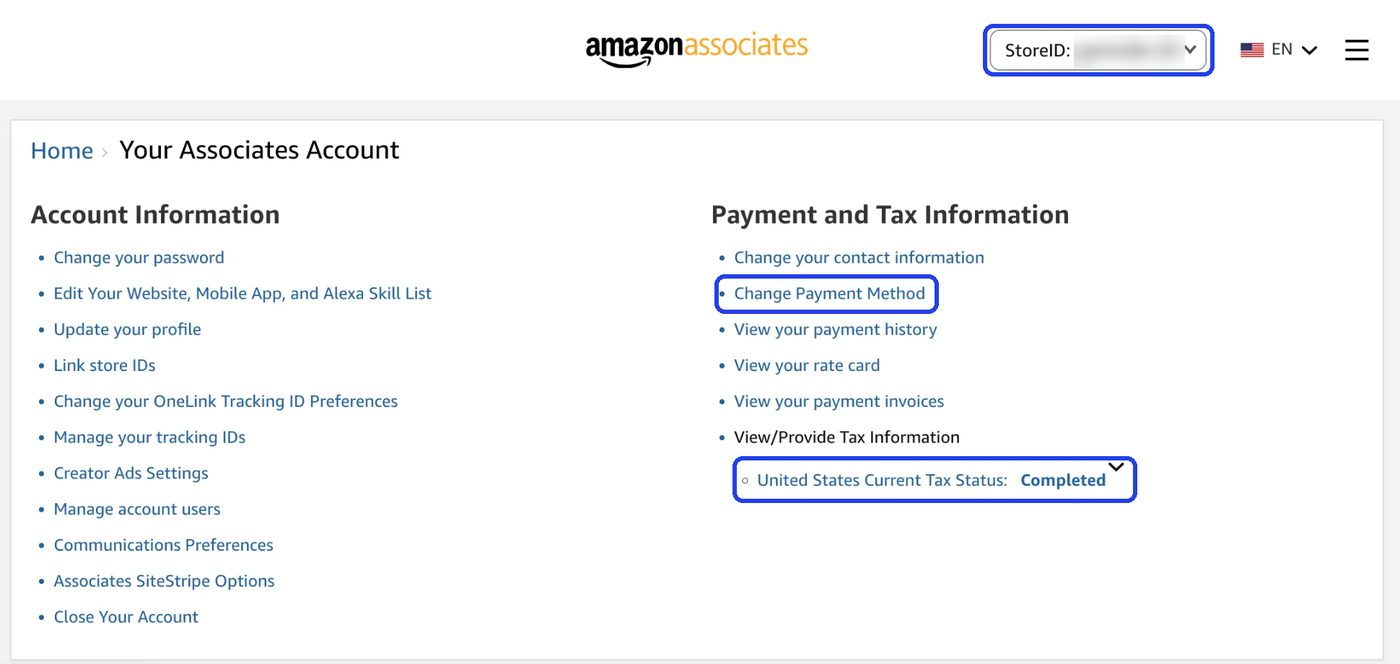
- Open the StoreID dropdown at the top right. You should see two: your normal Associates ID (it usually ends in "-20") and your Onsite Store ID (the one starting with "onamz").
- With your normal ID selected, open the menu (the three lines at the top right) and go to Your Associates Account (direct link). Everything in this step and the next is on that one page.
- Under Payment and Tax Information, click Change Payment Method and add your bank (direct deposit is simplest). Then click View/Provide Tax Information and finish the tax interview.
- Switch the StoreID dropdown to your onamz ID and do both again. It doesn't copy over.
- Check it actually saved. On each ID, View/Provide Tax Information should say Current Tax Status: Completed, and Change Payment Method should show your bank. If either one says anything else, your earnings on that ID will pile up and not pay out, and nothing will warn you.
Step 2: List every place you'll post links (10 minutes)
Almost nobody tells new creators about this one, and it's the one that can get an account closed. Amazon's rules say your links can only go on websites and accounts you've listed in your Associates account. If you post links on a YouTube channel, Facebook group or link-in-bio page that isn't on the list, you're breaking the Operating Agreement, even if everything else you do is perfect.
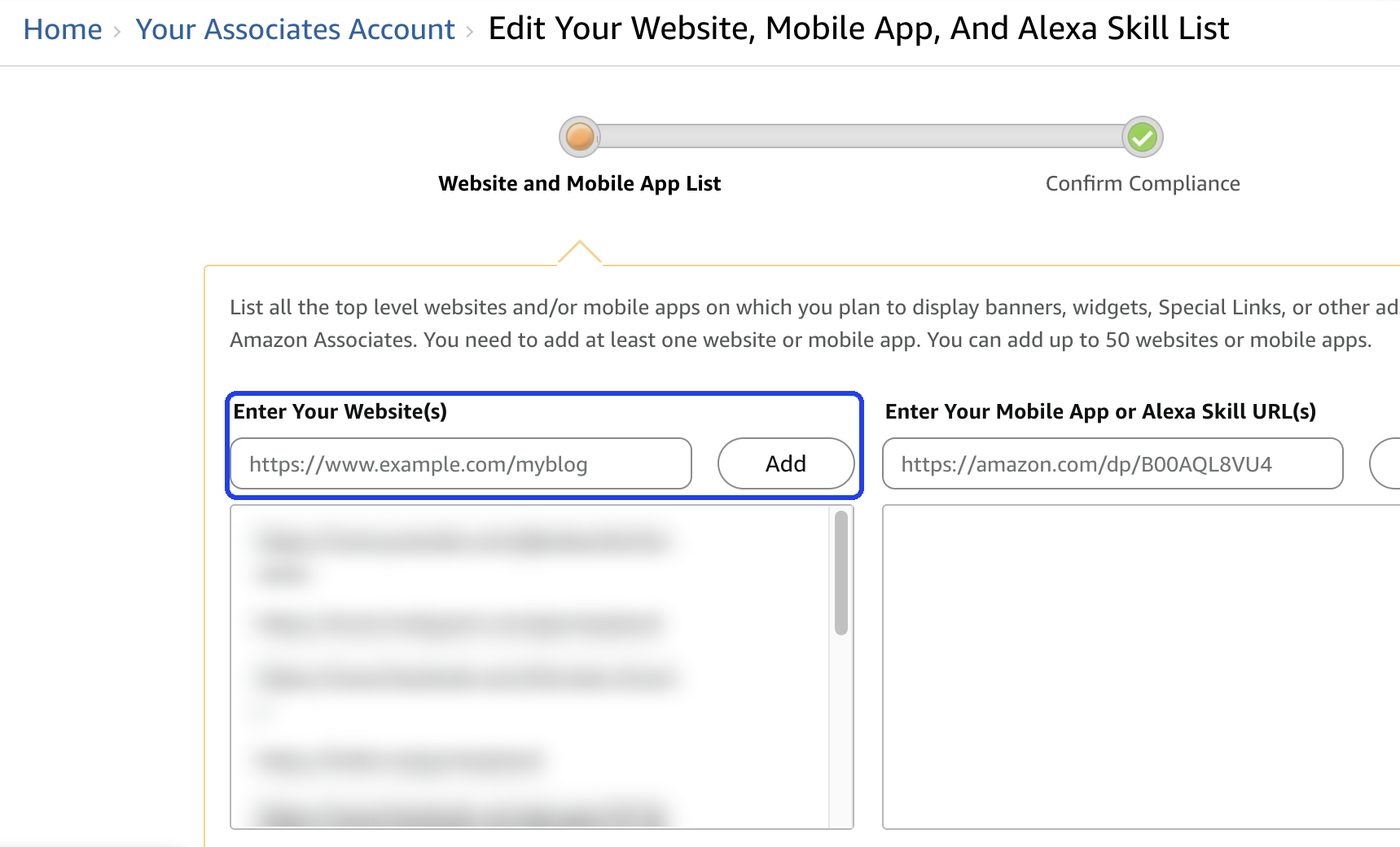
- In Associates Central, go back to Your Associates Account. Under Account Information, click Edit Your Website, Mobile App, and Alexa Skill List. (Direct link.)
- Add every place you'll share a link: your YouTube channel, Instagram, TikTok, Facebook page, any Facebook group you run, Pinterest, your link-in-bio page (Linktree, Beacons and so on), and your blog if you have one. Use the full address of each one. You can list up to 50.
- Finish the second screen, Confirm Compliance, so the list actually saves.
- Come back every time you start somewhere new. New channel, new group, new blog: add it before you post the first link there, not after.
Step 3: Learn where everything lives
You'll use these places for as long as you're in the program. Bookmark the first three.
| Where | What it's for | When you'll use it |
|---|---|---|
| Associates Central | Your home base. The StoreID dropdown is at the top right, and Your Associates Account (in the three-line menu) holds payments, tax and your website list. | Setup, and whenever something about money looks off. |
| My Earnings (top menu) | Your earnings, clicks and orders. Switch the dropdown to your onamz ID to see onsite earnings; they don't show on your normal ID. | Once a week is plenty. Checking hourly doesn't make it grow. |
| Your storefront (amazon.com/shop/yourname) | The page shoppers see. When you're signed in, it's also where you edit your profile, make idea lists, and upload videos. | Every filming week. |
| Upload and Manage Content (top menu) | Upload is where your video reviews go; you tag each one to a product. Manage Content is where you see each video's status: in review, approved, or rejected with a reason. | After every batch you film. |
| Creator Connections (top menu) | Brand campaigns that pay a bonus commission on top of your normal rate (Module 6). | Look around this week. Don't accept anything yet. |
| Promotions (three-line menu at the top right) | Creator Rewards, the Amazon Bounty Program and the Deals Hub, plus another way into Creator Connections. Creator Rewards pays a bonus when you hit monthly sales targets (Module 1). | This week: check you're enrolled in Creator Rewards. Then once a month. |
| Creator Central (Amazon Shopping app) | The phone version of the creator tools. | Quick checks on the go. Not for real work. |
Amazon renames and moves these menus often, so if a label on your screen doesn't match ours, look for the closest one. Check your dashboard
Step 4: Set up your storefront (15 minutes)
- Profile photo: your face, not a logo. People buy from people.
- A one-line bio that says what you review: "Honest reviews of kitchen and home gear, tested in our house."
- Your social links, so shoppers can find the rest of your content.
- Your disclosure in every social bio (Amazon's disclosure rules): "As an Amazon Associate I earn from qualifying purchases."
Step 5: Your first uploads
- Make 3 idea lists from things you actually own and use ("Our kitchen", "Travel gear we use", and so on). Five to ten products each. Idea lists can earn too, and they make an empty storefront look lived in.
- Read Module 3, then film your 3 onsite test videos. Simple products, clear demos, no prices, not clothing.
- Upload them from your computer (Upload, in the top menu) and tag the exact product you filmed. If it comes in colors or sizes, tag the one in your hands.
- Check the status a few days later in Manage Content. "In review" is normal and can take weeks. A rejection comes with a reason: fix that reason before you submit again, because you only get 3 rounds.
- Leave them alone while they're in review. Don't delete, re-upload or edit them. It can reset the clock.
- Start a simple tracking sheet: date, product, ASIN, category, price, video status. You'll thank yourself at video 200.
- Share your storefront with your own followers. That's how you get your first real sales, and it's what Amazon wants to see (the "3 sales" box above).
Step 6: What NOT to do in week one
Almost everyone who stalls early does one of these. Skip them and you're already ahead.
- Don't accept every Creator Connections campaign, and don't turn on a tool that accepts them for you. Brands see who delivers, and Amazon is cracking down on accept-everything accounts (Module 6).
- Don't buy new gear. Your phone got you approved. Film your first 30 videos on it and upgrade once you know what's actually slowing you down.
- Don't buy products to film yet. Start with what you own. Investing in products comes later, once you have your own numbers to budget from (Module 4).
- Don't film clothing for your 3 test videos. Fit and sizing are hard to demo, and you want easy approvals first.
- Don't post a link anywhere that isn't on your website list (Step 2). Add the place first, then post.
- Don't touch videos that are in review. Worth saying twice.
- Don't try to run it from your phone. Worth saying twice too.
Do this
- Today: payment and tax info on both store IDs in Associates Central, then check that both actually saved. Then add every site and social account you'll post links on to your website list.
- This week: storefront photo, bio and links, disclosure in your bios, and 3 idea lists.
- Next: pick your 3 test products (simple, in stock, $25+, easy to demo, not clothing), read Module 3, then film and upload them.
Module 3
Videos that get approved and sell
The rules, the rejection reasons, our filming formula step by step, and the gear we actually use.
14 min read
You don't need a studio. Michelle and I came from video production, and we'll still tell you: a clean video with good light and clear audio beats a cinematic one with muddy sound. Amazon shoppers want to see the product working, and they want to hear a real person explain it.
Before you film anything, read Amazon's own rules once, start to finish: the Associates Program Policies and the video guidelines inside Creator University. Ten minutes of reading saves you weeks of rejections.
What gets videos rejected
Most rejections come down to one of these:
| Rejection cause | Fix |
|---|---|
| Mentioning price, deals, discounts, shipping, "limited time" | Never talk price. Re-record or cut it. |
| Visible barcodes (UPC), price tags, shipping labels, addresses, license plates | Cover or remove them before filming. We just Sharpie over barcodes. |
| Anything that shows where you (or anyone else) are: house numbers, street signs, school uniforms | Be careful shooting outdoors. Amazon won't allow anything that can locate you or anyone else. |
| The product isn't clearly on screen | Keep the product in frame. Show it in use. |
| Tagging a product that isn't clearly in the video | Tag only what you actually show. |
| "Link in bio", URLs, asking people to follow/like/subscribe/comment | Remove all calls to go anywhere or do anything. |
| Asking for reviews | Never. |
| Music you don't have rights to | No music. Your voice is the soundtrack. |
| Medical or health claims ("cures", "lose 10 lbs") | Describe what it does, not what it treats. |
| Trashing competitor brands | Compare features, not insults. |
| Typos in the title or description | Proofread. |
| Poor audio or dark footage | Fix your light and your mic (see gear below). |
| Another platform's watermark or logo (a TikTok download is an instant fail) | Export a clean copy from your own editor. Never upload a video saved from another app. |
| Heavy on-screen text or captions formatted for social media | Keep text to a minimum. Let the demo do the talking. |
| Only the box, or only you talking | Get it out of the packaging and show it working. |
Also: gifted products must be disclosed, kids on camera need to be relevant and supervised, and Amazon logos and service names don't belong in the video.
Specs: .mp4 or .mov, under 5 GB, longer than 5 seconds and shorter than 60 minutes. Amazon doesn't require your face on camera, but we strongly recommend it (see below).
Words that get you rejected
Most of our rejections have come down to words. The ones that catch us most: safe, Amazon, buy, purchase, deal and save, plus anything that sounds like a medical claim. Keep all of these out of your videos, titles, and descriptions:
| Type | Words and phrases to avoid |
|---|---|
| Safety claims | safe, safe for kids, non-toxic, hypoallergenic, child-proof (unless you can back it up, leave it out) |
| Medical and health | cure, treat, heal, prevent, remedy, therapy, relieves pain, anxiety, depression, insomnia, arthritis, disease, doctor-recommended, FDA-approved, clinically proven, detox, weight loss, burns fat |
| Bold claims you can't back up | the best, #1, guaranteed, perfect, 100%, never breaks, lasts forever, better than [brand], miracle, life-changing results |
| Buying words | buy, purchase, order, add to cart, get yours |
| Price and deals | price, cheap, sale, discount, deal, save, save money, coupon, free shipping, limited time, Prime Day, Black Friday |
| Calls to action | link below, link in bio, click, buy now, follow, subscribe, like, comment, leave a review |
| Amazon itself | Amazon, Prime, Alexa or other Amazon service names (unless it's the actual product you're reviewing) |
| Anything offensive | slurs, crude language, insults about people or competitors |
Rule of thumb: describe what the product does and what you experienced. "It kept my coffee hot for about four hours" is fine. "The best mug on the market, guaranteed" isn't.
How often we get rejected now: about one video for every 500 we make. As you get better, you catch yourself in the moment ("I just said that word") and reshoot the line right there, or cut it in editing.
When a video does get rejected, we re-edit it and splice out whatever we think is the culprit. If we can't cut it cleanly, we just reshoot.
What works on Amazon now: value over volume
A lot of people shoot as fast as they can. They batch everything, rush through each product, and try to get as many items out there as possible. That may have worked in the past. Today, the rule of thumb is to provide value to your audience, and value doesn't mean a 30-second review.
Go a little longer. Videos over a minute and a half, over two minutes, even heading toward three minutes, are valued more now. That's what we've seen across thousands of videos: the ones that convert best and keep people watching longest are the ones that are a little longer.
But longer because you're giving more information. Never long just to be long. Longer is better as long as what you show and explain makes sense and is full of details.
Where the extra information comes from:
- Read the product page. Features, what's in the box, what it's for.
- Read the customer reviews, especially the concerns and complaints. Those are pain points. Show whether the product solves them, and you've made a video that answers exactly what the next buyer is wondering.
Be natural. Explain the product the way you'd explain it to a friend or a family member you were trying to help decide. That's how I see it.
And don't make it fancy. There's no need for fancy. Shoppers want to see the product up close, and they want the information and the details. That's it.
Stuck on what to say? A short script can help if you don't feel comfortable talking off the top of your head. MVP Affiliate (our software, on Pro) writes video scripts built around pain points, features and benefits. Use it as a starting point, then say it in your own words: a script read word for word sounds like a script.
Watch how we do it
Six of our real reviews. Watch them with this module in mind: how fast we get to the product, how close the camera gets, the questions we answer, and how natural we keep it. They play right here.
Our filming formula
Use this structure on every review until you don't need to think about it. Our videos run anywhere from about a minute to six or seven minutes, depending on the product. A quick, inexpensive product still gets at least a minute and a half. A piece of tech that needs in-depth focus gets five or six minutes. The timings below are for a short review; on a longer one it's the demo and the questions that expand, never the open.
Before you hit record (5 minutes)
- Read the listing's Q&A and the 3-star reviews. 3-star reviews are where buyers explain what they wish they'd known. Write down the top 2–3 questions. Those are your script.
- Check the variant. Film the exact color and size you'll tag. Since April 14, 2026, onsite pays on the exact variant.
- Clean the set. No boxes with labels, no clutter, nothing with an address or a price tag in frame.
- Charge, clear space, light. Nothing kills a batch like a dead battery halfway through.
The one time we love the phone. Everything else is faster on a computer, but while you're filming, the Amazon shopping app on your phone is the quickest way to find a product's ASIN (its ID code on Amazon). Open the app, tap the lens icon in the search bar, point it at the product or its box, and the AI finds the exact listing. It's right about 99% of the time and takes seconds. Note the ASIN, then tag the video properly later on your computer.
1. The open (first 3–5 seconds)
- Start on the product, already in frame. No intro, no "hey guys", no logo.
- Say what it is and who it's for in one sentence. "This is a cordless stick vacuum for small apartments and pet hair."
- Why it matters: the shopper decides in seconds whether to keep watching, and Amazon often pulls the thumbnail from the first frames. Onsite, you only get paid if they keep watching.
2. First look (10–15 seconds)
- Size and scale: hold it in your hand or next to something everyone knows (a phone, a mug).
- Build and materials: tap it, flex it, show the finish up close.
- What's included: lay out the accessories quickly. Don't do a 2-minute unboxing.
3. The demo (30–60 seconds, the part that sells)
- Use it for real, in the place it belongs. Vacuum the actual rug. Blend the actual smoothie. Put the dog bed where the dog sleeps.
- Show the result: before and after, the clean floor, the finished drink.
- Talk while you do it: what you're doing and what you notice. Short sentences.
- Get close: buttons, settings, the part people are unsure about.
4. Answer the questions (15–30 seconds)
- Hit the 2–3 questions you pulled from the Q&A and reviews. "A lot of people ask if it fits a queen bed. Here it is on ours."
- Numbers help: battery life you measured, noise level, how long setup took.
5. The real cons (10–15 seconds)
- One or two actual downsides. "The cord's short, so you'll want an extension." It builds trust, and trust is what converts.
- Keep it fair. If the product is bad, don't make the video. Move on.
6. The close (5–10 seconds)
- Who should buy it and who shouldn't. "Great for small spaces and pet hair. If you've got a big house with thick carpet, look at a stronger model."
- Then stop. No "link below", no "follow me", no "let me know in the comments".
After you record
- Edit on a computer, not your phone. It's a lot faster.
- Cut the dead air and flubs. When you mess up a line on camera, pause for 5 seconds and say it again. Don't restart the whole take.
- Check audio before anything else. Bad audio gets rejected and doesn't convert.
- Grab 3–5 still frames or photos while the set is up. You'll want them for thumbnails, idea lists, and social.
- Run it against the rejection table before you upload.
Uploading: where to click
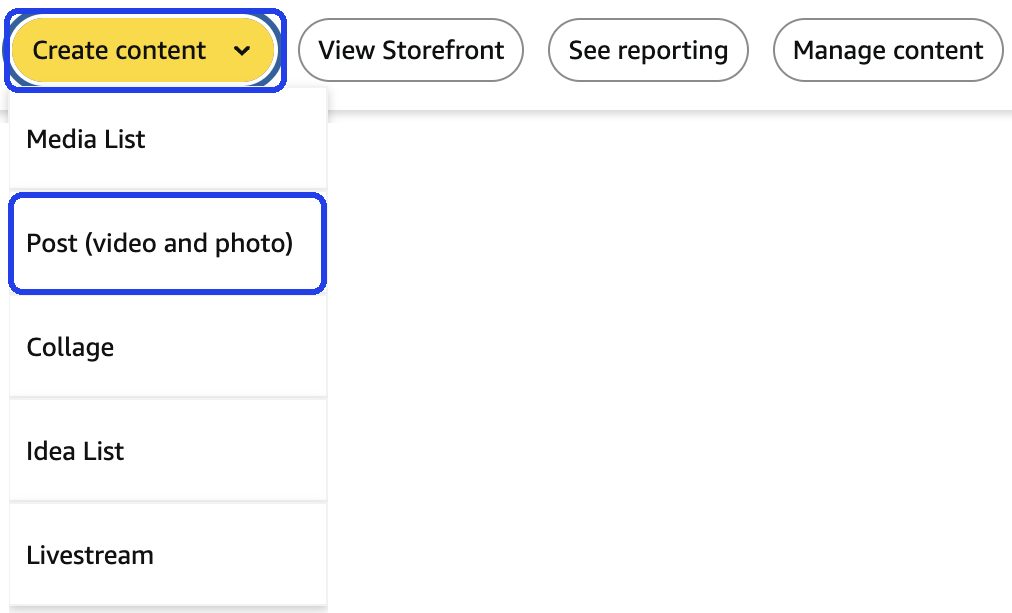
- On a computer, open your storefront while signed in (amazon.com/shop/yourname). A bar appears across the top: Create content, View Storefront, See reporting and Manage content.
- Click Create content, then Post (video and photo). (The same menu is where you make an Idea List or start a Livestream.)
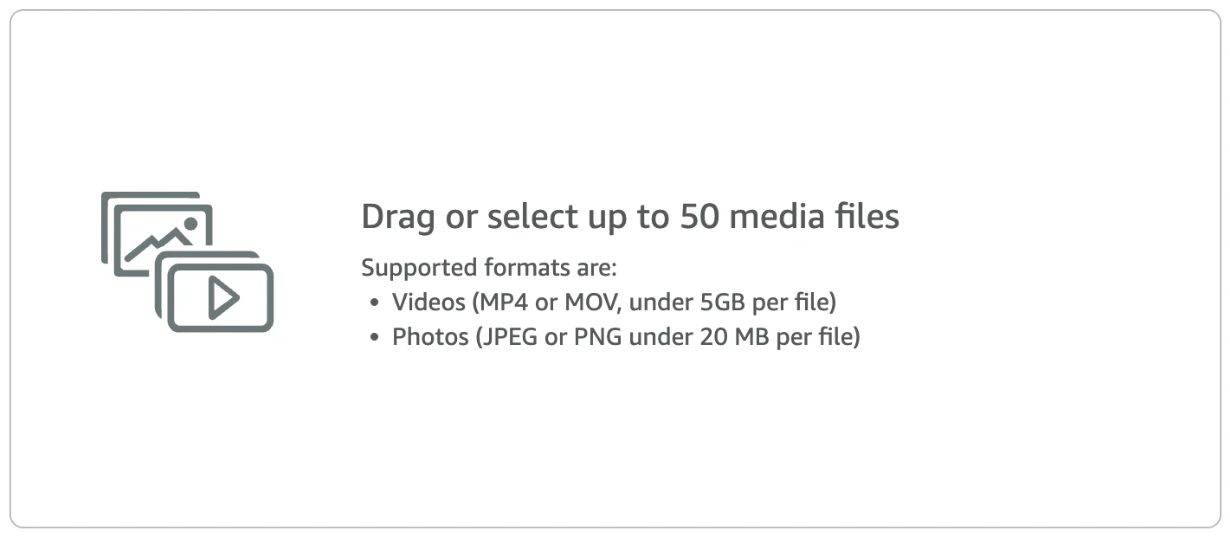
- Drag in up to 50 files at once. Videos as MP4 or MOV under 5 GB each, photos as JPEG or PNG under 20 MB each. A whole filming batch can go up in one go.
- Give each video its title and product tag (see tagging below), then submit.
- Check its status later in Manage content: in review, approved, or rejected with a reason.
You can also reach the uploader from Upload in Associates Central's top menu. Both go to the same place. Check your dashboard
Tagging: where your video shows up
The product you tag decides which product pages your video can appear on, and which sales you get credit for. It's not paperwork.
- Tag the exact product you filmed. Search by name or paste the ASIN (the 10-character code in the product's Amazon link). If it comes in colors or sizes, tag the one in your hands: onsite only pays on that exact variant.
- Comparison video? Tag every product in it. Your video can then appear, and earn, on each of their pages.
- Never tag a popular product that isn't in your video to borrow its traffic. It gets rejected, and shoppers who feel tricked don't buy.
- Watch your tags over time. If a seller switches to a new ASIN, retag the video (see when something looks wrong).
Show your face, shoot horizontal
We show our faces in 99.9% of our videos, and you should too. It creates a human connection, and in sales that matters a lot. We're not just reviewing products here, we're selling them. A real face explaining a product sells it.
Faceless accounts can work too, and plenty of creators do very well with them. But for us, the face is what builds rapport, and rapport is what sells.
We only shoot horizontal for Amazon.
Gear: what we use
We started with an iPhone and a Sony FX3, and we loved them. But today we shoot exclusively on the DJI Osmo Pocket 3. Switching was the best decision we ever made for this business.
Why we switched. We shot on the iPhone and the FX3 for years. We film in batches, and then I sit down at the computer to edit, because I don't edit on the phone and I don't recommend anyone does.
The problem was getting the files off the phone. Phone video files are huge. AirDropping a batch took anywhere from 10 to 40 minutes depending on the connection. That was a huge waste of time.
The other problem: phones are always trying to "improve" your footage with HDR and all the processing behind the lens. When you go from a shot of someone talking to a close-up of a product and back, that works against you. Shoot nonstop all afternoon, open it in your editor, and the shot isn't what you wanted.
The Osmo Pocket 3 fixed both. We switched last year. The image is crisp, it's very good in low light, and the dynamic range surprised us. We shoot a lot handheld (Michelle films when I present, and I film when she does), and the built-in gimbal keeps it smooth even while the camera is moving.
And the biggest thing: when I'm ready to edit, I plug a USB-C cable into the Pocket 3 and edit straight from the card. No transfer at all. That saves us a ton of time on every batch.
Our kit
| Gear | Why we use it |
|---|---|
| DJI Osmo Pocket 3 Creator Combo (paid link) | Our only camera now. The Creator Combo comes with an extra battery pack and a wireless lavalier mic. It's awesome when you're shooting alone too, because the flip screen lets you see yourself. |
| Round light (paid link) | We own two and love them. Great, even light with accurate color, and it lifts any video. |
| Tripod (paid link) | A must if you're shooting alone. The Osmo Pocket 3 secures to it easily. |
| RGB light panels (paid link) | Not a necessity, but nice to have when you want to add color and depth to the background of your shots. |
What matters no matter what you shoot on:
- Start with the phone you have. 1080p is plenty to get approved. Don't buy gear before you've made your first 30 videos.
- Audio first. A clip-on wireless mic makes a bigger difference than any camera upgrade, and it's the cheapest thing on this list.
- Soft, even light. A window works. So does a basic LED panel.
- One filming spot that stays set up, so starting a video takes seconds, not 20 minutes.
- Editing: keep it simple. Jump cuts, filler words out, volume evened out. No music.
Links marked "paid link" are our affiliate links and take you to the product on Amazon. As an Amazon Associate we earn from qualifying purchases, at no extra cost to you.
Titles and thumbnails
- Win the row on the product page. Your title sits next to other creators' videos, and the shopper picks one. A formula that works: the question a buyer has, plus your promise to answer it. "Does it survive frozen fruit?" "Watch this before buying the bigger size." Keep it under about 60 characters so it doesn't get cut off.
- Say what the product is and the angle: "Cordless Stick Vacuum for Pet Hair: 30 Days in a Small Apartment" beats "Amazing vacuum!!!"
- Never put "honest" in your title. We hate it, and audiences hate it too. Every review on the internet calls itself honest, so the word means nothing, and it quietly suggests your other reviews weren't. Show it with the cons in your video instead of claiming it in the title.
- Thumbnail, at first: clear product shot, good light, no clutter. 1280×720 is a safe size. Upload your own instead of letting Amazon pick a frame.
- Thumbnail, once you're past the basics: go bright and colorful, with the product, your face, and a few words of text. That's exactly how we build ours now (it's what MVP's Art Director generates for us). A few words, not a paragraph: the thumbnail is small on a phone.
- Don't obsess over this on video #3. Get to video #50, then optimize.
Comparison videos
A video comparing 2–5 similar products can be tagged on several listings, so one video does several jobs. They're more work, so save them for after you're approved and your basic workflow is automatic.
Do this
- Print the six steps and keep them by your filming spot.
- Before each video, pull 2–3 questions from the Q&A and 3-star reviews.
- Film your 3 test videos. Check them against the rejection table before uploading.
Module 4
Picking products that pay
Why "film your house" stalls out, how to screen a product in two minutes, and how to invest without going broke.
10 min read
This module is where the money is. A mediocre video on a great product will beat a great video on a product that can't pay you. Every time.
Why "film everything in your house" stalls
Filming what you own is how everyone starts, and it's fine for your first 30–50 videos. But your house is full of products that are cheap, in low-paying categories, discontinued, or already buried under 80 other videos. So you plateau. That's the $100-a-month wall people keep posting about.
The part people don't want to hear. There are two big turning points in our story. The first was volume. We did way more videos, and we weren't picky. That got us started, and back then it worked. Today, volume alone doesn't cut it: it has to be volume of good videos, on good products (Module 3 covers what good means now). The second was investing. I know that's taboo in the groups. Everyone wants to believe that if they film everything in their house they'll make thousands. That's just not the reality.
If you want this to be a sustainable business, you either work with the right brands or you reinvest your profits into well-researched products you know can make money. We did both.
Don't niche down (for onsite)
Most guru advice says "pick a niche." For onsite video income, we disagree. Shoppers on Amazon don't follow you. They're on a product page, and your video is there or it isn't. A wide catalog means more product pages, more Creator Connections campaigns you qualify for, and less risk when one category's rates drop.
We tried to cast a wide net. All niches. We didn't niche down at all, and it's one of the main reasons we scaled. If we started again today, we still wouldn't niche down on the storefront. If you're doing onsite, niching makes no sense. You want the widest net possible, so you can do as many collaborations with as many brands and as many different products as you can.
Offsite is different. For YouTube, a blog, or social, niching down is a good idea. Our YouTube channel mirrors our storefront, so it's a general product-review channel. If we started over, we might run separate channels. We know creators with five or six YouTube channels, one each for fitness, home decor, outdoors and sports, and so on. That works very well offsite.
What makes you different is your pitch
You can be a general product reviewer and still stand out. You just have to tell brands what's different about you, because that's what makes them pick you for their product.
Do you have a boat? Live in a mobile home? Run solar panels? Own a farm? Live near a beach, or a ski resort? Have four kids, three dogs, a tiny apartment, a workshop? All of that is a reason a brand picks you over someone else, and none of it forces you to narrow your catalog.
Broad catalog, specific story. That's the combination.
The 2-minute product screen
Before you buy or film anything, check these:
- Price. Aim for $25+ for anything you film, and $75+ for anything you buy with your own money. Under $25 is pennies.
- Category rate. Check the onsite table in Module 1. Home, Pets, Furniture, Lawn & Garden, and Beauty pay better onsite than Toys or Grocery.
- Does it sell? Look at sales rank, "X bought in past month" on the listing, or a tool estimate. You want real monthly volume and a proven sales history, not a brand-new listing.
- How crowded is it? Scroll to the videos. When you're starting out, fewer than about 20 influencer videos are a good sign; a listing with hundreds is a lottery ticket. (This matters less once you have experience and a big catalog.)
- Is there a Creator Connections campaign? With 3+ months left, ideally. The bonus changes the whole math (Module 6).
- Return risk. Avoid clothing, shoes, and anything with lots of one- and two-star reviews. Returns claw back commissions.
- Will it still be here in a year? Check the brand's history and catalog, not just the listing (see "evergreen" below).
- Can you demo it well? If it's boring on camera, it won't convert.
The payback math (illustrative)
Say you buy an $80 home product with a 15% Creator Connections campaign on it:
- Onsite Home rate: 3% of $80 = $2.40 per sale
- CC bonus: 15% of $80 = $12.00 per sale
- Total: $14.40 per sale while the campaign runs
You need about 6 sales to earn the product back. Resell it locally for $60 after filming and your real cost drops to $20, which is 2 sales.
Without the campaign, the same product would need about 34 onsite sales to pay back. That's why we tie buying decisions to CC campaigns. A simple rule: if it can't plausibly pay for itself in about 30 days, don't buy it.
How we reinvest (and why it costs less than you think)
Early on we reinvested about 50% of our monthly commission back into buying products to review. That sounds crazy to most people. It's how the catalog grew.
As the catalog grew, brands started noticing us and sending products for collaborations, so we needed to buy a lot less. Today it's about $2,000–3,000 a month, roughly 10–15% of our monthly commission.
Here's the part that makes it work: we resell. You buy the product, film the review, make your content, and then sell it. After a review the product is practically new. We sell to friends, family, on Facebook Marketplace, and Michelle has a whole list of people locally who wait for our stuff because they get near-new products at a discount.
So say we buy a $300 product. We film it, it gets posted, sales start coming in, and during that first month we've probably already sold it locally for $250. Our real cost to recoup is $50, not $300. That's how our investment goes a long way.
"That only works because you live on an island." We're fortunate, sure. But if we were in suburban Ohio with same-day Amazon delivery, we'd still build this. We'd just discount more to make it worth someone's while.
It starts with social media on the local front. Facebook Marketplace first, then a local buy-and-sell group, then word of mouth. Once a handful of people know you get near-new products at a discount, they come back and they bring friends. Your resale price will be lower than ours. Your real cost per product will still drop a lot.
A few ground rules if you copy this:
- Only resell what you bought. Gifted samples and campaign products come with expectations from the brand; if you want to resell those, ask first.
- Film everything you need before you sell (the review, the photos, any social cuts). You won't get the product back.
- Keep your numbers. Log purchase price, resale price, and what the video earned. That's your real payback.
What "well-researched" means to us
Price point first. We don't buy $10–15 products. It's not worth it. When we're spending our own money, we're usually looking at products over $75 with good sales velocity.
Free product is a different calculation. On Creator Connections we've accepted products worth around $20 when the sales history, the velocity and the competition made it obviously worth filming. The product is free and the campaign bonus is where the money is, so the sticker price matters much less. Outside CC, if a brand just wants a review of a $20 product, that's a paid job: our fee is $55 (Module 7).
Your first few hundred products should be researched hard: very little competition (look for carousels that aren't full), a good sales history, the right price point. That's how you build a portfolio that actually earns.
Once the portfolio is there and you're seeing onsite and offsite sales, you can worry about competition less. For us today, the number of competing videos doesn't matter much. If a carousel is full, we'll still go for it, because of how we make our videos, how we pick products, and the kind of content we create. With our experience it's worth it.
But if we were starting today, we'd search even harder for the right price, the right sales velocity, and the least competition. In the beginning, competition matters a lot. As you grow in experience and in catalog size, it matters less.
What losing looks like (it's normal)
Not every product you buy will earn. That's part of the model, not a sign you're failing.
The vacuum run. We once bought about 25 vacuums to review and compare. Only seven or eight of them brought in good sales. The rest earned little or nothing.
Here's why it still worked. They cost between $50 and $200 each. We resold every one of the 25 within a month, at about half price on average, so roughly half of what we spent came straight back. That's the real number the batch had to earn: not 25 vacuums, but half of 25 vacuums.
The seven or eight winners covered that, because of the sheer volume of content the batch produced (an individual review of each one, plus comparison videos that got tagged on several listings). Those vacuum videos still pay us today.
That's the whole game: you're not trying to win on every product. You're trying to make your winners big enough, and your losses cheap enough, that the math works across the batch.
Look for evergreen products
We look for products that will still be on Amazon in three, four, five, even ten years. Nothing is more of a bummer than filming a product that vanishes from the platform two months later. Some of our staple videos are on products that have been listed for many years, and they still pay us daily.
How to spot them: look at the brand, not just the product.
- A brand with a single product on Amazon might be just starting out, and there's a good chance they never restock it or they switch niches entirely. Your video dies with the listing.
- A brand with a real history and its own storefront is a much safer bet. Think Anker, Eufy, Shark, Ninja (those four are paid links): established brands that release popular items every other month and keep them listed for a long time. Scroll their storefronts and you'll see what an evergreen catalog actually looks like.
- You don't need famous brands. In a really specific niche, most of the brands are ones nobody's heard of, and those products still sell and keep selling. Those count as evergreen too.
Evergreen beats trendy. A video on a product that sticks around is an asset; a video on a flash-in-the-pan listing is a favor you did for a seller.
Tools: only two, and not yet
You can do everything in this module by hand, and you should until you have at least 100 videos live and you're making some money. You need to know what you're looking for before a tool can help you find it.
When you're there, we only recommend two:
- MVP Affiliate (full disclosure: it's ours, we built it for our own business). Product research, Creator Connections campaigns, and turning one review into content for your other channels.
- Oink for Influencers: a browser extension for spotting untagged videos, campaign matches and competition on a listing.
That's it. Stay away from tools that grab your data and sell it back to everyone as a feature. If a tool scrapes your storefront, your earnings or your best products and turns it into "trending products" for every other user, you're paying to train your competition.
Myth: "Volume is everything. Post 20 videos a day."
Reality: Volume only works on products that can pay. You can post 500 quick, low-effort videos on cheap products and sit at $100–200 a month. The same 500 videos on products that pass the screen above is a different business. Same volume, different products.
Links marked "paid link" are our affiliate links and take you to Amazon. As an Amazon Associate we earn from qualifying purchases, at no extra cost to you.
Do this
- Run your next 10 video ideas through the 2-minute screen. Drop anything that fails 3+ checks.
- Set a monthly product budget as a percentage of last month's commission, not your savings. We started around 50%; pick what you can actually afford and raise it as your catalog proves itself.
- Line up your resale channel before you buy: Marketplace, a local group, friends and family.
- For every product you buy, log price, CC rate, resale price, and date so you can track real payback.
Module 5
Getting products without getting burned
Owned, bought, sampled, gifted, or sent by a brand. Where our products come from each week, and why buy-and-return will end your account.
5 min read
There are five ways products end up in front of your camera. Each one has a catch.
1. What you already own
Start here. Check your Amazon order history too: anything still listed is fair game, and so is stuff you bought elsewhere if the same product is sold on Amazon. It's free and it's how you learn. The catch is the one in Module 4: most of what's already in your house won't pay much.
2. Buying to keep (investing)
This is the approach we use, and it's covered in Module 4. Buy products that pass the screen, preferably with a Creator Connections campaign, and treat them as inventory for your content business. Then, once the content is done, resell them locally at a discount to get most of your money back. That's the difference between "I can't afford to buy products" and "my real cost is $50." Keep receipts.
How our local community works. Everyone around us knows this is our job: we do Amazon reviews for a living. They also know that if they want a good deal on something brand new but open box, because we've tested and reviewed it, they can buy it through us.
So people message Michelle all the time: "Do you have a vacuum?" "Can you get an AC unit?" Anything that's on Amazon. Michelle checks the price and the sales velocity, then goes one of two ways:
- It's a product we want to review (good price, sells well): we give them a really good deal, maybe $50 or even $100 off, because we know we'll make money on the video.
- It's not one we'd pick ourselves: we still review it and sell it to them, but at a very small discount.
Either way, the product gets reviewed and it's already sold before we've even filmed it.
3. Buy-and-return: don't
A lot of beginners buy a product, film it, and send it back. Never buy to return.
Our own rule: we almost never return anything. Where we live, returning from a Caribbean island is hard and costs us money out of pocket, so we just don't. Our account is squeaky clean because we barely ever create a return.
Real returns are fine. Broken, wrong item, defective: send it back, that's what returns are for. What kills accounts is buying to review and then returning. Amazon will find out, and they ban fast. When they close your shopping account, your influencer account goes with it.
If you simply don't want the product anymore, resell it instead. It's easier, it's less headache, and you're running an influencer account now.
- On February 2, 2026, Amazon started warning shoppers in the returns flow that "excessive returns, cancellations or refunds" can lead to account restrictions or blocks. That notice is aimed at your shopping account, not your Associates account, which is exactly why it matters here. They didn't publish a threshold.
- If your shopping account gets closed, you can lose your orders, gift card balances, and Prime, and possibly more.
- It's also unfair to sellers who eat the cost of returned "used" items.
4. Samples from Creator Connections brands
Brands running CC campaigns often send free product to creators who ask. It happens through messaging the brand inside the campaign.
- Request only what you will actually film, on the brand's timeline.
- The seller ships it. You're expected to use it in your content, and you must disclose it was gifted.
- Not every request gets a yes. Your delivery record is what gets you the next one.
Our rule on CC samples: we accept the campaign the moment the seller ships the product. Shipping to St. Martin takes about 20 days, so that's our buffer. Don't lock yourself into a campaign before you know the product is on its way.
5. Brands that come to you
Once your storefront has a solid catalog, brands will message you, usually through Creator Connections messaging, email, or Instagram DMs. Some want free content in exchange for product; some will pay. Module 7 covers how to price it.
Amazon Vine is a different thing
Vine is Amazon's invite-only program for customer reviewers (written reviews on the listing), not the Influencer Program. You can't apply. It's nice if you get invited, but don't plan around it.
A quick word on gifted products and taxes
Gifted products can have tax implications depending on where you live. We're not going to give tax advice. Keep a simple log of what you received and what it's worth, and ask your accountant how to handle it.
Where our products come from. Through 2024, about 80% of everything we reviewed came from Creator Connections. We were messaging over 100 campaigns a day, and roughly 20% said yes. That's about 20 new brand relationships a day from sheer volume of outreach, and it's the single biggest reason the catalog grew as fast as it did.
CC has changed. We still message brands, but a lot less than we used to, and now we do it through MVP Affiliate, so the messages are more focused. Today we buy more products than we receive for free through CC.
How much comes in each week: on a slow week, about 50 products. In busier periods, up to 100 a week. The difference is almost entirely how much we message brands and how much we accept. It isn't a season, it's an effort dial.
Where a slow week's products come from:
| Source | Products per week |
|---|---|
| Bought ourselves (researched, plus community resale requests) | 20–25 |
| Free from brands we collaborate with directly by email | about 20 |
| Free through Creator Connections | 5–6 |
One product doesn't mean one video, which is why we can make more videos in a week than we take in products. A comparison video covers several products at once and gets tagged on every one of their listings.
Do this
- Go through your last 12 months of Amazon orders and list everything you could still film.
- Start a "gifted products" log: date, brand, product, value, where you posted.
- Set your rule on returns now: never buy-and-return. If you don't want it, resell it.
Module 6
Creator Connections done right
How CC works, how the bonus stacks, what Amazon is changing right now, and why delivering is your edge.
7 min read
Creator Connections (CC) is where a lot of the real money is now, especially after the latest rule changes squeezed base rates. It's also where a lot of creators are quietly ruining their reputation.
How CC clicked for us. CC started around the end of 2023, and it made it very easy for us to talk to brands we'd never been in contact with before. The first day I was on it, there were only about 400 campaigns. You could go through all of them by hand.
Today there are hundreds of thousands of campaigns, and the platform is extremely saturated. That means brands are less and less likely to answer you. So two things matter a lot now:
- A good first message with a real hook. Not "Hi, I'd love to collaborate."
- An easy way to keep talking outside CC. Give them your email, your website, whatever you choose. CC's messaging system is painful; get the conversation out of it.
CC is not dead, but it moves fast. CC grew for us all through the summer of 2026 and then shrank in September, when Amazon changed the program again. That's the rhythm of it: it's always changing, it's changing right now, and Amazon is bringing updates that are going to make it very interesting.
The practical takeaway is not "avoid CC." It's don't let any one stream carry you. Work CC hard while it's good, and keep building the parts Amazon can't change overnight.
How it works
- Brands create campaigns that pay a bonus commission on top of your normal rate. Brands have to commit a budget of at least $5,000 (a cap on commissions, not money paid upfront), a commission of at least 10%, and a campaign that runs at least 30 days. In practice 15–20%+ is common, and some go higher.
- You find campaigns in Associates Central (and in Creator Central in the app) under the brand/campaign section. You accept a campaign, and it moves to your active list.
- The bonus applies to qualifying purchases of the campaign products until the campaign ends or the budget runs out. After that, your content earns the normal rate.
- It stacks with onsite. Sales credited to your onsite video for a campaign product earn the onsite rate plus the CC bonus (the shopper has to buy the exact variant).
- Tracking window is 24 hours from the click, same as normal links.
- CC bonuses pay out with your regular earnings, about 60 days after the month ends.
Why CC changes your product math
Go back to Module 4's example: an $80 product earns $2.40 per onsite sale without CC and $14.40 with a 15% campaign. That's 6× more per sale. That's why pros look for the campaign first and the product second.
Is posting content required to earn the bonus?
No. It never was. Amazon has been flip-floppy about that question and it's hard to get a straight answer, but since Creator Connections started, campaigns have paid out without content being submitted. That's the reality.
But if you want to run this as a proper business, create the content anyway. We tell everyone the same thing. If you want brands to keep working with you, make them happy. Make good content, make good videos, and then tell them about it. Connect the content to the campaign, or if you're not going to connect it, at least message the brand so they can see it in all its glory. That's when a brand gets excited about you as a creator and wants to work with you again and again.
The auto-accept debate
Some tools can scan your storefront and automatically accept every campaign that matches products you've already posted. It's tempting: more accepted campaigns, no new filming.
Here's where we land: it works, and it's not against any rule we can find. But brands see it. Sellers post on Amazon's own forums about dozens of creators accepting a campaign and almost nobody delivering.
Why we care about this. Lately we've had brands message us directly, frustrated that their campaigns get claimed by creators who never make content. Those brands remember who delivered. Accepting everything and posting nothing might pay this month. Being the creator brands trust is what pays for years, and it's how the paid deals start.
What just changed, and why
We've been saying for a while that Amazon would have to overhaul CC. It started in September 2026, and it's worth understanding, because it explains a lot of what you're about to read in the Facebook groups.
Here's what actually went wrong. Amazon got bombarded by creators running automated tools that accept every campaign they can reach, regardless of whether any content ever gets made. At scale, that buries a seller's campaign under creators who were never going to film anything.
Sellers are furious, and rightly so. They committed a budget expecting content and got claims instead.
So Amazon is rolling out new ways of collaborating with brands inside CC that are built around actually producing content. It's early and it's still moving, so check your own dashboard rather than trusting anyone's summary, including ours. Check your dashboard
What it meant for us: our CC income grew all summer and then pulled back in September as this rolled out. We're not worried about it. We've always made the content.
What this means for you, in plain terms:
- The accept-everything era is closing. If your plan was to claim campaigns in bulk and post nothing, that plan has an expiry date on it.
- A delivery record is becoming an asset. The creators who can show a brand what they posted are the ones who'll get picked as this tightens.
- Don't panic-quit CC. It's being repaired, not removed, and it's being repaired in favor of people who do the work.
- Don't let CC be your whole income while it's in flux. Ours was our biggest stream and it moved inside a month.
If you've been doing this the straightforward way (accept what you'll film, film it, tell the brand), this change is good news for you. That's the whole reason we push it so hard in this module.
Doing CC the right way
- Accept campaigns on products you've filmed or will film within the campaign window.
- Tag your existing videos to campaigns you qualify for. This alone can add real money on content you already made. It's legitimate: you did the work.
- Deliver fast. Most creators who accept a campaign never deliver. Simply showing up puts you ahead of most of them.
- Disclose gifted and sponsored content.
- Watch end dates. Video content goes to campaigns with 3+ months left. Short campaigns get quick content at most.
- Message the brand when you deliver. One line: "Posted, here's the link, happy to do more." That's how a campaign turns into a relationship.
How we choose campaigns
We look at three things:
- How long the campaign runs. Anything with more than three months left gets a video from us. We're much less inclined to film for a campaign that only runs two weeks, or that has 30 days or less left. We might give it something quick, like a blog post or a social post, because it's short-lived.
- Price point. Same rule as Module 4: we don't spend our time on cheap products.
- Sales history. Is this a brand-new product? Sometimes a new product is great right out of the gate, but most of the time we don't want to be tied to products with no proven sales history. You'd basically be making video content for a product that may never sell, and that hurts you in the long run.
When a product turns out to be bad
We contact the seller right away. We explain why it's bad, add pictures and sometimes a video to show them, and tell them we won't be reviewing it because it would hurt us in the long run.
We don't review, or give positive reviews to, products that don't deserve it. That's our motto, and it should be yours too. Your audience's trust is the business.
Myth: "If I accept a brand's campaign, they'll put my video on their listing."
Reality: Brands can't control which influencer videos Amazon shows on a product page. Amazon's algorithm does. Never promise a brand placement, and don't believe anyone who promises it to you.
Do this
- Open the campaigns section and filter for products you already have videos on. Tag them.
- Pick 5 campaigns with 3+ months left, a proven sales history, and a price point that passes the Module 4 screen.
- Keep a delivery log: campaign, accepted date, posted date. Aim for 100%.
How MVP helps
Everything above works from Amazon's own campaigns page, and for your first campaigns it should. We built our side of it because the filtering is the slow part: most campaigns fail the Module 4 screen, and on Amazon you find that out one listing at a time.
- The campaign finder carries what the Amazon page makes you dig for: the payout, how long the campaign has left, how full it already is, and whether the brand has a history worth your time.
- A daily digest scores that catalog against what you already review, reweights it by the ones you thumb down, and hands you 25 picked for you instead of thousands sorted by nothing.
- Runway in the open. End dates sit on the card, so the rule above about 3 months left is something you filter on rather than check by hand.
- Joining stays your press. SCOUT opens the campaign in your own signed-in Amazon and clicks Accept there. It records what you joined, so the delivery log this module asks you to keep writes itself.
The campaign finder is not a paid feature. It unlocks once MVP can see you actually have Creator Connections access, on any plan, and messaging brands is unlimited on both. Full disclosure: MVP is our software, and nothing in this module needs it. See the plans.
Module 7
Paid brand deals and UGC
When brands start messaging you: what to charge, usage rights, pitching, and scams.
11 min read
Your Amazon catalog is a portfolio. Once you have a few hundred solid videos, brands start reaching out, and some of them will pay. This is how you stop depending 100% on Amazon's commission table.
Brands got interested in us because of our growing catalog. The more we posted, the more collaborations came in, and the less we had to buy products ourselves. Through the summer of 2026 we pushed hard on direct paid brand deals, and they've held steady since, even through the Creator Connections changes in September. That's the point of them: it's a real income stream you negotiate yourself, not a bonus Amazon can reprice.
What UGC pays right now
These are the market ranges we're seeing right now. Use them as a starting point, not gospel.
| What | Typical range (USD) |
|---|---|
| One UGC video, beginner | $100–250 |
| One UGC video, mid-level | $250–500 |
| One UGC video, established | $500–1,500+ |
| Amazon product demo video paid by the brand (micro creator) | $300–1,500 |
| Extra hook or call-to-action variation | $25–50 each |
| Raw footage | +30–50% of the base price |
| Rush delivery (48–72h) | +25–50% |
| Bundles | 5–25% off depending on quantity |
What we charge: our production fee is $55 per video, per product. That's on the lower end for us, on purpose: right now we're going for volume. If a brand wants four or five videos, we bundle them and give a better deal.
We know our work is worth more than $55. But we filter the offers that come our way and make videos for products that will pay us more in the long run. The real value of a deal is production fee + resale value + sales commission: these videos go on our storefront, where we earn onsite and Creator Connections commission on every sale, and we can resell the product afterwards. Pure UGC, where the brand owns the content and you earn nothing after delivery, should be priced like the table.
Learn the power of no
We've never taken a $5 job. A lot of sellers will offer a $5 or $10 production fee, and a lot of influencers accept it. Don't. The table above is what the open UGC market pays; on the cheap Amazon jobs that land in your inbox, treat $25 per video as the floor you never go under, even on day one. The people pulling this market down aren't the brands; they're the creators saying yes to free or $5.
When we do a direct deal for free product only: when the product is worth it, roughly $400 and up. That's a different deal from a $15 gadget.
(Creator Connections is its own thing. There we'll take a $20 product for free if the sales history and the competition make it worth filming, because the campaign bonus is the money, not the product. See Module 4.)
When a seller messages us about a $15 or $20 product, our production fee is $55. About 75% of them come back and try to negotiate lower. We simply say no. Most of the time, that's the end of the negotiation, not the end of the deal.
We've learned the power of no. Very often we turn down a lowball offer, and the brand comes back and accepts our terms right away.
Remember who you're talking to. Many of the "brands" messaging you are paid agents whose job is to get the best deal out of influencers for the brands they represent. That's fine, it's their job. Your job is to know your worth and value your work.
Make it easy for brands to find and pay you
Your storefront is your portfolio: it shows exactly what you do. Your YouTube channel can be a great portfolio too. But we recommend having at least one page of your own with your whole offering.
On gominplanet.com we show our best work, exactly how we work with brands, what we offer, what our production fees are and what brands get for them. We even added a way for brands to pay online, right on the site. That makes it really easy to work with us.
Usage rights: where the real money hides
The base price usually covers the brand posting your video organically on their own pages. Anything more costs more:
- Paid ads usage: the brand runs your video as an ad. Common pricing is roughly 20–30% of your base price per month, or a flat uplift by term (for example +30% for 30 days, up to +100% or more for 12 months). The two models don't match on long deals, and that's deliberate: the flat-term price is the discount you give for buying a year up front instead of month by month.
- Whitelisting / Spark Ads: the brand runs ads from your account. Often 30% of base per month, or a flat monthly fee.
- Using your video on their Amazon listing (the brand's own product video slot): treat it like paid usage and price it in.
- Exclusivity (you can't work with competitors): +30–50%, and only for a set period.
- Perpetual buyout: roughly 2.5–4× base.
A simple formula: Base + (Base × usage % × months). Example: a $200 video with 3 months of paid usage at 25% a month is $200 + $150 = $350.
The deal checklist (get it in writing)
Before you film, the brand's email or contract should state:
- Deliverables (how many videos/photos, length, format) and revisions (one round included is normal)
- Where it will be used (organic, paid ads, whitelisting, their Amazon listing) and for how long
- Exclusivity, if any
- Price, payment terms, and deposit (50% upfront on larger deals is common)
- What happens if they cancel after you've filmed (a kill fee)
- Disclosure: paid content has to be labeled (#ad, "Paid partnership")
Never promise placement
A brand can't pay to put your influencer video on their product page, and neither can you guarantee it. Amazon's algorithm decides. Sell the video, the rights, and your onsite upload; never "top carousel spot guaranteed."
Pitching brands
Keep it short enough to read on a phone:
- A subject line that names their product.
- One line showing you know the product ("Your cordless pet vacuum has 2,000+ reviews and only 4 influencer videos").
- One line on what you'd make and why it fits.
- One proof line: your storefront link and a best-performing video.
- A clear ask: "Want me to send a rate card?"
Follow up twice, 3–5 days apart. A 5–10% reply rate is normal. Use a professional email, ideally on your own domain.
Email is the best way to talk to brands. It keeps the threads alive, and it lets you keep every contact. After years of doing this, we've built a pretty substantial list of sellers and brands we can reach out to for new opportunities, and they can reach us the same way. Start building that list from your very first deal.
UGC platforms: where to get your first reps
Platforms are a great way to get your first paid jobs, testimonials and portfolio pieces while your catalog grows. Direct deals will always pay better, but you don't need to wait for brands to find you. Here's how each one works. Fees and rules change, so check each platform's terms before you sign up.
Billo
- Sign up: billo.app
- How it works: brands post briefs (often product demos for Amazon, TikTok and ads), you apply, the brand ships the product, you film and deliver in the app.
- Pay: roughly $50–150 per video for standard work, more for complex briefs. Paid out after the brand approves.
- Requirements: no follower minimum. Your sample videos are your application.
- Good for: beginners building a portfolio fast, and Amazon-style product demos that match exactly what you already film.
- Watch out for: lower pay than direct deals. Treat it as paid practice, not your ceiling.
JoinBrands
- Sign up: joinbrands.com
- How it works: a big marketplace of brand jobs: UGC videos, photos, TikTok/IG posts, and Amazon shoppable video jobs. You apply per job.
- Pay: default rates start low (around $50–100 per video) and go up as you level up on the platform. The platform takes a fee on your earnings (around 20%, lower with their paid creator plan).
- Requirements: open signup; your level and ratings unlock better-paying jobs.
- Good for: volume and Amazon-specific jobs.
- Watch out for: popular jobs get hundreds of applicants. Pitch with your best Amazon videos, not your bio.
Insense
- Sign up: insense.pro
- How it works: brands (many of them DTC and ad-focused) invite or accept creators for UGC built to run as paid ads, often with whitelisting.
- Pay: usually better per video than beginner marketplaces; set per campaign.
- Requirements: a solid profile with sample videos; brands pick who they want.
- Good for: learning to make ad-style UGC and getting paid for usage rights.
- Watch out for: slower turnaround and more revisions, because the content is going into ads.
Collabstr
- Sign up: collabstr.com
- How it works: you list your own packages with fixed prices (for example "1 UGC video, $150"), and brands book you directly. Payment is held in escrow until you deliver.
- Pay: you set it.
- Requirements: a profile with your content and prices.
- Good for: creators who already know their rates and want inbound bookings.
- Watch out for: you're a listing among thousands. A clear niche and strong samples matter.
SideShift
- Sign up: sideshift.app/creators
- How it works: an app where you apply to campaigns from brands, including big names. It covers UGC and creator jobs, with earnings tracked and paid out through the app. Free to join; you attach your social handles and top-performing videos.
- Pay: varies by campaign (per video, per post, or ongoing).
- Requirements: a complete profile. They offer a free UGC training course that earns a verified badge brands can see.
- Good for: access to bigger brands and ongoing campaigns.
- Watch out for: competition is high. Deliver on time every time; ghosting gets you filtered out fast.
Trybe
- Sign up: jointrybe.com
- How it works: a performance-based UGC app. You browse brand programs, join with a tap, submit content, and brands run approved content as Meta (Facebook/Instagram) ads. The app shows your ad performance and earnings in real time.
- Pay: tied to results: commission on sales your content drives, pay based on ad performance, or flat per-submission fees and retainers, depending on the brand. Payouts go through Stripe to 170+ countries, which matters if you're outside the US like we are.
- Requirements: the app, and content that can run as an ad.
- Good for: creators who make content that sells and want upside beyond a flat fee.
- Watch out for: performance pay means some videos earn little. Mix it with flat-fee work.
Fiverr
- Sign up: fiverr.com
- How it works: you create "gigs" (for example "Amazon influencer product video, 60 seconds, 7-day delivery") with basic, standard and premium tiers, and buyers order them. Amazon sellers use Fiverr a lot to find product video creators.
- Pay: you set your prices. Fiverr takes 20% of every order, and payments clear after a holding period before you can withdraw.
- Requirements: open signup. Reviews drive everything, so your first few orders matter most.
- Good for: getting found by Amazon sellers who need product videos, and packaging your work clearly (video + raw footage + extra hooks as add-ons).
- Watch out for: price races to the bottom. Don't compete on being cheapest; sell your Amazon experience. Never promise onsite placement in a gig.
Our take: we don't use UGC platforms much these days. We've dabbled with Trybe and Fiverr, and there are a lot of others out there. They're useful and very easy to use, and they help you get connected with brands when you're starting out. At this point we're happy with the number of collaborations we get by email, but that doesn't mean we'll never focus on platforms again.
Our one issue is fees: some charge flat fees, some take a commission or a percentage, and we're not always a fan. But if you're starting out, it's better than nothing, and we still recommend them. Use them to get reps, reviews, and your first brand contacts, then move those relationships to email.
Lives can be a paid add-on too. Some brands will pay for an hour or two of Amazon Live on top of videos and posts. Module 11 covers how we sell them.
Working with brands: what's normal and what's a red flag
What's normal (don't panic):
- Brands want to move the conversation to email, WhatsApp, WeChat or Lark. That's commonplace now, especially with sellers based overseas.
- You'll usually talk to an agent, not the brand owner. Many brands are represented by individual agents, sometimes with strange-looking email addresses or generic names. That alone isn't a scam.
- English is often a second (or third) language. Be patient and be very clear. Short sentences, one question per message, and put the deliverables, price and dates in writing so there's no confusion later.
Red flags (walk away):
- "Buy the product first and we'll refund you." Or "buy it, leave a review, and we'll send a gift card or PayPal refund." Never do this. It breaks Amazon's rules on incentivized purchases and reviews, and it can cost you your account.
- Any money flowing from you to them: "processing fees", "deposits to qualify", or an overpayment by check followed by "please refund the difference".
- Payment in gift cards or crypto for your work.
- Anything tied to a positive review or a star rating.
- "Guaranteed Amazon approval" or "guaranteed onsite placement." Nobody can promise that.
Rule of thumb: money never flows from the creator to the brand, and you never buy a product in exchange for a refund. If they want your content, they send the product and pay for the work.
Do this
- Build a one-page rate card: base video price, bundle price, and usage add-ons.
- Pick 10 products you've already reviewed that have few influencer videos. Pitch those brands this week.
- Pick one platform above, build your profile with your 3 best Amazon videos, and apply to 5 jobs.
- Save a contract checklist in your notes app and use it on every deal.
How MVP helps
The pitching, the pricing and the paperwork above are yours, and they should be. Two parts of this module are only typing, and that is the part worth handing over.
- Brand pitches drafted for you, in your own voice, built from products you have actually reviewed. 30 a month.
- The brand recap is the one we use most. Review six of a brand's products across YouTube, your blog and four social platforms and you are holding thirty links for that brand, spread over weeks. The recap gathers every one into a single message and marks what is new since the last one you sent.
Why the recap earns more than the pitch. Making it easy for a brand to find and pay you is the whole module. A brand that can see everything you published for them on one screen does not need selling on the second deal, and delivering is the edge this module keeps pointing at.
Full disclosure: MVP is our software. Every deal in this module can be pitched, signed and delivered without it. See the plans.
Module 8
Offsite traffic and the calendar
Where your links are allowed, what works on each platform right now, and how to plan around Q4.
16 min read
Onsite videos depend on Amazon showing them. Offsite traffic is the part you control: people who click your links. It also pays standard rates, which are higher than onsite rates.
Platform by platform
YouTube: the big one right now. In late August 2026, Amazon joined YouTube Shopping's affiliate program in the US, so creators can tag Amazon products directly in long videos, Shorts, and lives. YouTube reports that product tags get far more clicks than description links. You need YouTube Shopping Affiliate eligibility (YouTube lowered it to 500 subscribers in 2026, with Partner Program membership) and an Amazon Influencer or Associates account linked. Check your dashboard Your Amazon review videos are ready-made YouTube content. Repurpose them: it also gives you a dated, public copy under your own account, which is your proof you published first if someone steals a video.
Pinterest. Amazon Associates US is one of Pinterest's official affiliate partners (Pinterest's affiliate rules). Pinterest says the link should go directly to the product page, and some link shorteners aren't supported. So link each pin to your own blog post or to the full, tagged Amazon product URL: no redirects, no cloaked or branded short links, no link-routing services. Disclose on every pin. Want to know what Pinterest earns you? Create a separate tracking ID just for Pinterest in Associates Central and use it on every pin.
Instagram. Stories links and automated DMs (comment a keyword and get the link by DM) work well. Amazon allows links in DMs and messages to people who asked for them (opted in), with an easy way to opt out.
TikTok. On a personal or creator account, clickable bio links need 1,000+ followers. A business account can add a bio link with no follower minimum, which is the fastest way around this when you're starting from zero; the trade-off is that business accounts only get TikTok's commercial music library. Links in captions aren't clickable either way. Send people to your storefront or your link-in-bio page (below) from your bio. TikTok Shop is a separate affiliate system.
Facebook. Post in pages and groups you own or moderate. Dropping links in other people's groups is how you get flagged as spam. Meta now limits link posts on Pages and creator profiles, and Module 10 shows the setup that works around it: a Page for content, your own Group for deals.
Blog and email. Blogs still work if the content adds real value (the new "original content" rule). Email lists are allowed for opted-in subscribers. Links in PDFs, ebooks, or printed material are not allowed.
One link in bio for everything
Most platforms give you one link. Your Amazon storefront works, but it only shows Amazon, and it's built for Amazon's shoppers, not for your audience. A link-in-bio page lets you send people from any platform (Instagram, TikTok, YouTube, Facebook, and Threads) to one place that shows your latest reviews, your gift guides, your storefront, your YouTube, and your blog.
We built one into MVP Affiliate (full disclosure: it's our software) so our audience lands on a single page that's always up to date with what we've just reviewed.
Whatever you use, a few rules:
- Put your Amazon disclosure on the page itself, not just in your bio.
- Make it obvious the product links go to Amazon. Label them ("See it on Amazon") and don't hide the destination.
- Pinterest is the exception. Pins should link straight to the Amazon product page or your own blog post, not to a bio page.
How we use ours. We use the link-in-bio page anywhere we can't put a direct product link in front of people. On Pinterest, people can click the pin and go straight to the blog post or the product. But on TikTok and Instagram, we need a way for people to see a list of our links.
So when we post an Instagram story with a "link in bio" call to action, the link on our Instagram profile is our MVP link-in-bio page. Every link we create or share through MVP shows up there automatically as a product card with our affiliate link, so people land on the dozen or more products we're promoting right now.
It works really well. Since we started using it, we've had a nice bump in traffic.
One tracking ID per platform
Out of the box, every link you make carries the same tracking ID. That means a sale from YouTube, a sale from Pinterest and a sale from your Facebook group all land in one bucket, and you can't tell which platform is actually paying you. You end up spending your time on the one that feels busy instead of the one that earns.
The fix takes five minutes: make a separate tracking ID for each place you post links.
- In Your Associates Account, under Account Information, click Manage your tracking IDs.
- Click Add Tracking ID and make one per platform, with a name you'll recognize at a glance: one for YouTube, one for Pinterest, one for your blog, one for your Facebook group, and so on. Amazon adds the ending (like "-20") for you.
- Give it up to 24 hours before using a new ID. Amazon says that's how long it can take to switch on.
- Pick the right ID every time you make a link. SiteStripe (the bar across the top of Amazon when you're signed in) has a tracking ID dropdown. Choose the platform first, then copy the link.
- Once a month, open My Earnings and look at results by tracking ID. Now you can see which platform actually earns. Check your dashboard
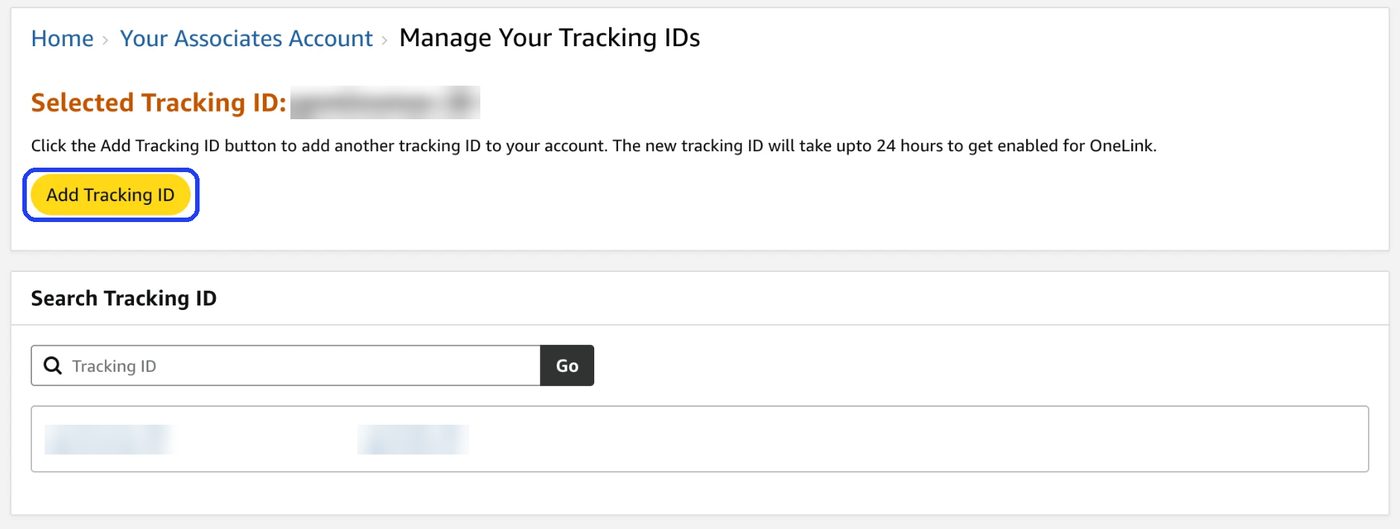
Two more ways to use them: make one for a season or a campaign (a holiday gift guide, say) to see what that push actually earned, and one per person if someone else posts links for you. Tracking IDs are for your offsite links. Onsite earnings stay on your onamz Store ID either way.
Links for the whole world: OneLink or Passport
A normal Amazon link sends everyone to amazon.com. That's fine for your US followers. But your blog, your YouTube and your social posts are seen all over the world, and a shopper in the UK or Canada who lands on amazon.com usually won't buy there.
A geo-routing link fixes that. It checks where the person clicking is and opens the right Amazon for them: amazon.co.uk for a UK viewer, amazon.ca for a Canadian one, and so on. You stop throwing away every international click, and your content is suddenly open to the whole world, not just the States.
- OneLink is Amazon's own version. You set it up in Your Associates Account under Change your OneLink Tracking ID Preferences. Check your dashboard
- Either way, join each country's Associates program you want to earn in. A UK sale only pays you if you have a UK Associates tag for the link to use. For countries where you don't have one, the link falls back to your US store and tag.
What we use: Passport links in MVP Affiliate (our software, on every paid plan). They do the same job as OneLink, sending each visitor to their own country's Amazon with our tag for that country, and they give us a lot more tracking information on top. If a product isn't sold in the visitor's country, the link sends them to the US store instead, so nobody lands on a dead page.
Rules that apply everywhere
- Disclose: "As an Amazon Associate I earn from qualifying purchases" in your bio or about section, plus #ad, #CommissionsEarned or "(paid link)" near links (Amazon's disclosure rules, FTC endorsement guides).
- Make it clear every link goes to Amazon. Link tools and short links (amzn.to, Geniuslink-style smart links, your own branded links) are fine, as long as the reader knows they're headed to Amazon: label them ("See it on Amazon", "(paid link)"). What the Program Policies prohibit is using them in a way that makes it unclear the link goes to Amazon, or that hides which site or app the click came from.
- Never buy through your own links, or ask friends and family to do it for you.
- Never offer anything in return for using your link (giveaways, rebates, "use my link and I'll...").
- Purchases from paid or boosted ads pointing to Amazon don't earn commission anymore (since April 14, 2026).
Disclosing the way the FTC asks
Amazon's line in your bio covers your affiliate links. It does not cover everything else. In the US the FTC decides what counts as a proper disclosure, and its own plain-language guide for influencers (Disclosures 101 for Social Media Influencers) is short and worth reading once. It also says the job is yours: don't rely on the brand, the platform or anyone else to disclose for you. Here is what matters for how we work.
When you have to disclose
- Any relationship with the brand: money, a job, family, friends. And anything of value, not only cash. A free product, a discount or a perk counts.
- That includes Creator Connections samples, Vine items and anything a brand sent you, even when the brand never asked you to mention that particular product.
- Every time. Don't assume your viewers already know, and disclose even if you're sure your review is fair.
- Tags, likes and pins count as endorsements too. Pinning a brand's product or tagging it in a post is the same as recommending it.
- Posting from outside the US doesn't get you out of it. If US shoppers will reasonably see it, US rules apply, and your own country's rules may apply as well.
- If you bought something yourself and just like it, you don't need to say you have no deal with the brand.
Where it goes
- With the recommendation itself, where it's hard to miss. A disclosure only in your bio or About page, at the end of a video, or below a "more" click is easy to miss, and the FTC says so.
- In the video, not only the description. Say it out loud and put it on screen: some people watch with the sound off, and others never read what's on screen.
- On a live, say it more than once. People join part way through, so repeat it every so often.
- On a photo or a story, put it on the image itself, long enough to read.
- Not buried in a pile of hashtags or links at the bottom of a caption.
- YouTube's paid promotion box is not enough on its own. Tick it (we always do), and still say it yourself. The FTC's advice is to use a platform's tool in addition to your own disclosure, never instead of it.
What to say
- Plain words work: "Thanks to Acme for the free product", "ad", "advertisement", "sponsored". A hashtag like #ad or #sponsored is fine but not required.
- Skip the vague ones: "sp", "spon", "collab", or "thanks" or "ambassador" on their own. They don't tell anyone what the relationship is.
- Same language as the video. This matters for Amazon's other countries: a video dubbed into German needs its disclosure in German, not an English line left over from the original.
Honest reviews are part of it
- Don't talk about your experience with a product you haven't actually used.
- If a brand pays you and you thought the product was bad, you can't call it great. Say what you really found (Module 3's "real cons" step is there for this).
- Don't make claims that need proof the brand doesn't have. "Clears acne", "cures back pain" or "boosts collagen" on a beauty or health product is exactly the kind of claim the FTC means. Describe what you saw and felt, not what the product treats.
A routine that covers all of it in about ten seconds a video: say it out loud in the first minute ("the brand sent me this one", or "this video is sponsored by..."), show it on screen at the same moment, tick paid promotion in YouTube Studio, and repeat it at the top of the description and in your pinned comment.
We treat YouTube and our blog as search engines, not follower machines. Pretty much everything on our storefront is on our YouTube channel, or will be. We're not trying to build a huge following around one niche. We want views from people searching for the products we've reviewed, and a big catalog means a lot of searches we can show up for.
If you want to build an audience offsite, niching down works well there (see Module 4). If you want search traffic, volume and good titles win.
The Deals Hub: see deals before they go live
The Deals Hub replaced the old promo code page. If you have access, you'll find it in the three-line menu under Promotions. It lists thousands of products that are about to go on deal, and you can promote them. Check your dashboard
The big advantage: you see the deals in advance, so you have time to make your content before the deal starts.
Mind the embargo. You're seeing these deals early, so you can't show them yet. Say a vacuum cleaner is going to be 50% off in three days. You can post about that 50% off in three days. If you post it now, people who click won't get the discount, because the deal hasn't started yet. That burns your audience's trust.
So make the content now, and schedule it to go out when the deal actually starts.
We built exactly that into MVP Affiliate (full disclosure: it's our software). You write the deal post the day you find the deal, set it for the moment the deal starts, and it publishes itself then. If a post names a big sale event whose dates Amazon hasn't announced yet, it holds the post until they have.
Amazon's own wording, shown on the Deals Hub pages: deals are confidential and can be published only on or after they appear on amazon.com. There's a second rule too: the dates of big events like Prime Big Deal Days are confidential until Amazon announces them. So even "big sale coming October 7!" can break the embargo if you post it before Amazon does.
One rule still applies: deal posts are for your offsite channels (social, your blog, email). Keep prices, "deal" and "discount" out of your onsite review videos, or they'll get rejected (Module 3).
Idea lists that earn: build them around the season
Idea lists are super good, especially for seasonal moments: Prime Day, back to school, Christmas, Black Friday and Cyber Monday.
Give each list one focus. For back to school, we'll make a list of backpacks: some for really young kids, some for college students. That one list covers a whole range of buyers.
Then build content around the list, not just the products. Those idea lists are what you want to write blog posts about and make social posts for, because people love a list of options to choose from. Not "here's one backpack for you," but "here are the 10 backpacks we've reviewed and love, and we think you'd love them too."
Make them ahead of time. Build the list a few weeks before the season starts, so it's ready to share when shoppers start looking. The calendar below shows when each season starts for us.
Making an idea list, click by click
- From your storefront bar, click Create content, then Idea List.
- Title it the way a shopper would search for it. Amazon's own example is "My Essentials for Hiking in the Desert": that specific. "Back to school backpacks, kindergarten to college" beats "Backpacks".
- Click Add products. You need at least two to save the list. The ones you've actually used and filmed are the ones to add.
- Write the description yourself, up to 600 characters. There's a Generate button that writes an AI draft. If you use it, edit it into your own words and check every claim, because Amazon itself says AI text needs checking, and it's your name on the list.
- Add 10 or more products if you want Amazon to make an AI cover image for the list. Then click Save.
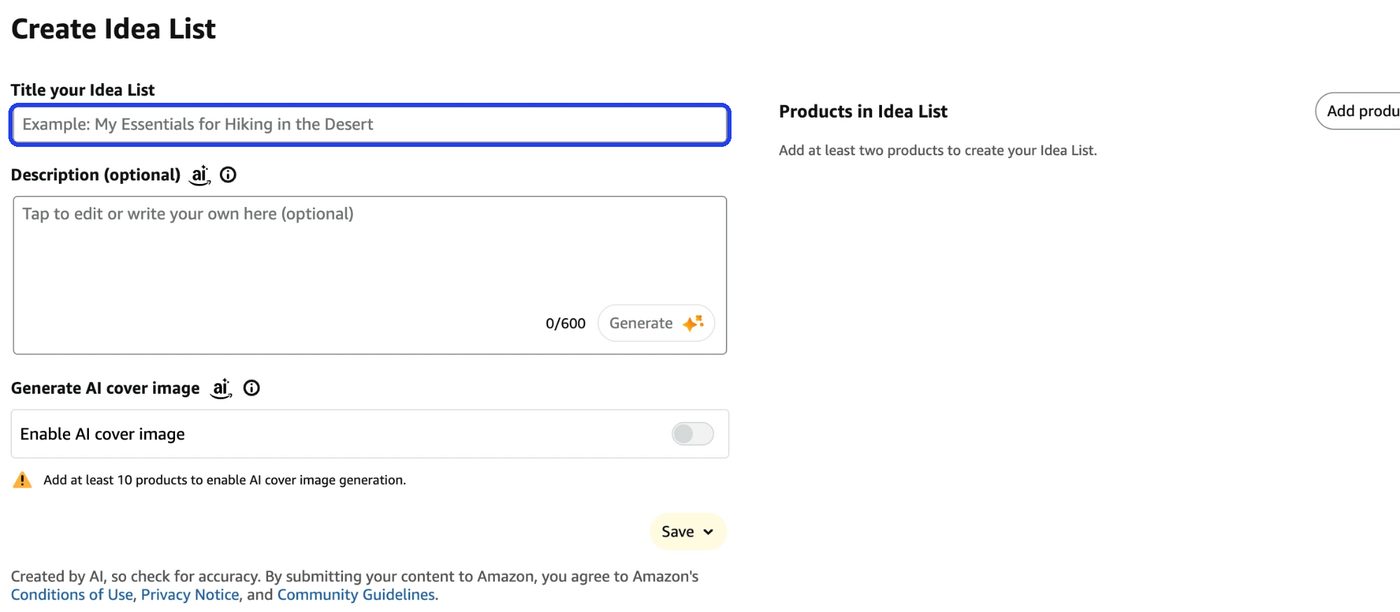
The calendar: Q4 is everything
Q4 is where the year is made. Here's our own month-by-month pattern, taken from two full years of our earnings. Each figure is that month compared with an average month in the same year, so you can see the shape without worrying about the size of anyone's catalog.
| Month | vs. an average month | What's going on |
|---|---|---|
| January | ~55% | The after-holiday slump, and it's brutal. Barely half a normal month. Some years surprise us with gift cards being redeemed, but plan for the worst. |
| February | ~50% | Our lowest month of the year. This is when we're already filming summer content. |
| March | ~70% | Climbing back, still well below average. |
| April | ~75% | Below average. |
| May | ~85% | Below average, but close to normal. |
| June | ~95% | Summer specials start. In 2026 Prime Day moved to late June, which made it a much bigger month for us than usual. |
| July | ~130% | 4th of July and back-to-school. Historically our strongest non-Q4 month, because Prime Day used to land here. |
| August | ~105% | Still summer, tapering off. |
| September | ~110% | It feels slow, everyone's back in work and school mode, but our numbers say otherwise. Trust the data, not the vibe. (September 2026 was the exception for us, and not because of the season: Amazon changed Creator Connections and our biggest stream pulled back.) |
| October | ~115% | Q4 ramping up. |
| November | ~130% | Holiday shopping everywhere, plus Black Friday and Cyber Monday. |
| December | ~175% | Our biggest month by far: last-minute shopping with fast delivery. Watch Amazon's delivery-by dates and push those products. |
Across those years, an average Q4 month earned about 1.4× a normal month, and December alone was about 1.75×. So plan for a strong finish, not a miracle.
The good news about January. Those first-quarter numbers are the shape of our early years, and they're the honest version: February used to be half of a normal month for us.
It flattens out as your catalog grows. Now, with years of evergreen videos earning in the background, our January and February were running roughly level with the rest of the first half of the year instead of falling off a cliff. The slump never disappears, but it stops being frightening.
That's one more argument for evergreen products (Module 4). A big catalog of things people buy all year is what carries you through the two months when nobody's shopping.
Your calendar for the rest of the year
| When | What | What to do |
|---|---|---|
| Now (late Sept) | Q4 prep window | Film giftable products now. Review can take days to weeks; you want videos live before the rush. |
| Oct 6–7, 2026 | Prime Big Deal Days | Share deals offsite (without quoting prices in onsite videos). |
| Nov 27 & Nov 30, 2026 | Black Friday / Cyber Monday | Peak week. Refresh idea lists and gift guides. |
| December | Gift season | Gift guides by person ("for dads", "for pet owners") on your storefront. |
| Jan–Feb | The slump | Expected. Film and build catalog for the rest of the year. |
| Summer | Prime Day (it moved to June 23–26 in 2026, after years in July) | In 2025, Amazon raised link rates across 13 categories from July 1–20, doubling some of them (jewelry went 4% to 8%, beauty 3% to 6%) and lifting others by less. Watch for promos. |
Money rule: save part of your Q4 earnings to cover the January–February dip. In your early years those two months can come in at half a normal month, so budget for it. It'll happen every year.
Do this
- Pick one offsite platform to be consistent on for 90 days. For most people with review videos, that's YouTube.
- Add your Amazon disclosure to every bio today.
- Make one tracking ID for each platform you post links on, and use the right one every time.
- List 20 giftable products that pass the Module 4 screen and film them before mid-October.
Module 9
YouTube: your searchable library
Why every Amazon review should also live on YouTube, how we post three to five a day without thinking about it, getting found, your links and disclosure, and when YouTube starts paying you itself.
12 min read
You're already filming product reviews for Amazon. Putting every one of them on YouTube costs you no extra filming, and it's the single best thing we've done for our business outside Amazon.
What YouTube actually does for us
It's our library. Our channel is a database of all our video reviews, searchable by anyone. Someone searches a product name, a brand name, or even a feature, and boom, our video has the chance to be there. On YouTube, and on Google too.
The biggest thing it brings us is brand deals. We get discovered by shoppers, yes, but also by brands. Say we made a video for a pool vacuum from brand X. Brand Y is looking at its competition, sees our video and thinks: these guys made a really good video, let's get in touch. That's how it works, and it keeps working for years after you post.
And now YouTube pays us too. Once we reached YouTube's subscriber and watch hour requirements, we started earning AdSense revenue from the channel, on top of everything else.
Our YouTube story. We had a channel from years back, about ten years ago, when we did a few brand collaborations. It barely had any subscribers and no watch hours to speak of. It was dormant.
Then we started the Amazon Influencer Program, filmed videos every single day, and built a huge library. So we posted, and posted, and posted. We met YouTube's requirements in about six months, and the first AdSense deposit came a couple of months later. From a dormant channel with a few subscribers to being paid every month took about eight months, give or take.
Now it's a really nice way to add to our online income, and it grows every single month.
One review, posted everywhere
At first, we took all of our Amazon videos and put them straight on YouTube. No re-editing. It worked great, and the channel grew very quickly.
Now we post three to five videos a day, all scheduled in advance, so we never have to think about it. Once a channel has been around a while, posting several times a day works.
If you're starting out, the same approach works: post your Amazon reviews as they are, and post consistently. Every video needs four things before it goes up:
- A title people would search. Think of YouTube like Google: when you search for something, you type the brand and the product name. So our formula, from before we used any tools: the full brand and product name, plus a question, or a feature with a question. For example, "Brand X Pool Vacuum: does it really climb walls?"
- A description with your link on the very first line. Ours always starts like this:
Check this product out on Amazon here: [your link] (this is an affiliate link)
Then the disclaimer. For Amazon that's the line Amazon requires: As an Amazon Associate I earn from qualifying purchases. Then what the product is and what you think. - Your disclosure, said out loud too, and YouTube's paid promotion box ticked (how).
- Tags, all of them. YouTube allows about 500 characters of tags per video, and we use them all. Not sure what to use? Start typing the product into YouTube's search bar and look at what it suggests. For a bidet you'll see things like "bidet", "toilet bidet", "toilet gadget". Those are what people search.
Thumbnails
- Put a face on it. It's been proven: thumbnails with a face get more clicks.
- Minimal text. A few words, not text splattered everywhere.
- Vibrant and colorful. The classic, clicky YouTube look: you holding the product up or standing next to it, with a big smile or a surprised face.
How we started. Before we used any tools, we made one preset thumbnail template in Canva and reused it: a simple photo of me or Michelle with the product, a good smile or a surprised face, and a few words. Now it's all automated, so we spend no time on thumbnails at all.
The Studio settings we use on every video
- Paid promotion: always ticked.
- Made for kids: No. A video marked for kids comes with a completely different set of YouTube rules, and product reviews aren't made for kids.
- A playlist. Every review goes into ours, called Simply Reviews.
- Notify subscribers: off. When you post several times a week, or a day, every notification is a reminder to unsubscribe from "that review channel", and we've watched subscribers leave because of it. Treat the channel as a search engine, not a subscriber pool.
- Scheduled, about a month ahead. Videos stay private until the time we pick, then go public by themselves. The only ones that skip the line are brand collaborations paying us to post right away.
Shorts from every review
Every review also becomes Shorts. We clip all of our reviews into short vertical videos and post them as Shorts, which reach people who'd never sit through a three minute review. By hand, that means re-editing each review into short vertical clips and uploading them as Shorts. We use MVP's Clip Factory for it (below).
Your links
- Pin a first comment with your link. Plenty of viewers read the comments before the description. We pin one on every video.
- Add an on-screen call to action. A short "link below" box near the end of the video tells viewers where to go.
- Use a YouTube tracking ID, so you can see what YouTube earns you (how).
- Make your links work outside the US. YouTube is watched all over the world, and a viewer in the UK or Canada sent to amazon.com usually won't buy. We use Passport links so every viewer lands on their own country's Amazon (OneLink and Passport).
- Tag products with YouTube Shopping. Amazon is part of YouTube Shopping's affiliate program in the US now, so you can tag Amazon products right on the video, and we do on every one. Not eligible yet? It opens up as your channel grows (see the table below).
- Your channel must be on your Associates website list before any link goes up (Step 2).
When YouTube pays you itself
The YouTube Partner Program has two levels. These are YouTube's current numbers: Check YouTube
| Level | Subscribers | Plus one of | What it unlocks |
|---|---|---|---|
| Early access | 500 | 3,000 watch hours in a year, or 3 million Shorts views in 90 days, plus 3 public uploads in the last 90 days | YouTube Shopping, memberships, Super Thanks. No ad money yet. |
| Full | 1,000 | 4,000 watch hours in a year, or 10 million Shorts views in 90 days | A share of ad revenue (AdSense) |
Watch hours and Shorts views don't add together: you qualify on one or the other. Long reviews build watch hours, which is one more reason to post every review you make.
Where we are. We're fully monetized, so we earn ad revenue (Google AdSense) from the channel. We're also paid through YouTube Shopping, and it's really worth it: the commission works differently, and it earns us more than Amazon's offsite links do.
The hard part is watch hours. Subscribers come fairly easily. Watch hours are what most people struggle with, so keep an eye on them.
Start today. YouTube keeps changing the requirements, and right now is the easiest the bar will ever be. As more people chase YouTube money, it will only get harder. Don't wait.
YouTube's own pages: the Partner Program and how to apply, and getting started with YouTube Shopping.
Mistakes we see
- A channel missing from your Associates website list. Amazon requires you to tell it every place you'll post links. If you run more than one YouTube channel, list every one of them. It's the mistake that can close an Amazon account (Step 2).
- Only a text disclosure. When a product was sent to you free, or in exchange for a review, say so out loud, not just in the description, to follow the FTC's rules. Ours sounds like: "I received this great multi-tool from Brand X in exchange for my review, and I'm super excited to try it out today." Then the review.
- Duplicate videos. If you make more than one video about a product, make them different: another angle, another question, another use.
- Chasing trends and subscribers instead of answers. We don't really look at trends. We make videos that answer questions and help shoppers understand the product and the brand, and the rest falls into place. Don't overthink it. Just create.
- Posting in bursts. Ten videos one week and nothing for a month. Scheduling ahead fixes this.
How MVP helps
Everything above works by hand, and you can absolutely do it yourself. We use MVP because at three to five videos a day, the busywork adds up.
Why we'd never go back. Once we have the video, MVP takes care of the rest: the title, the description, the tags, the thumbnail, and posting it to YouTube. Paid promotion and the AI disclosure are set, and the first comment is posted and pinned. All of it is automated. YouTube Co-Pilot buys us back so many hours we used to spend in front of a computer, posting by hand.
- YouTube Co-Pilot writes the title, description and tags for each video, with your affiliate link on the first line and your disclosure, fills the tags to just under YouTube's limit, and schedules videos ahead.
- Bulk Amazon upload takes up to ten videos, burns the on-screen call to action in, builds the thumbnails, uploads them to YouTube and schedules them, and puts the original videos on your Amazon storefront.
- Clip Factory cuts each review into Shorts. We run every review through it.
- Pinned comments posts and pins a first comment with your product link on every video, new and old.
- Passport links send every viewer to their own country's Amazon.
All five are part of MVP. See what it costs.
Module 10
Facebook: Pages, Groups and posting your deals
The difference between a Page, a Group and a creator profile, the new link limit, what Meta Verified does and doesn't do, and how to post your deals to as many people as possible.
11 min read
Everyone wants the same thing from Facebook: post their deals, their affiliate links and the products they recommend, to as many people as possible, without hitting a limit. There's a lot of misinformation about how to do that. Here's the simple version.
Page, Group, creator profile: what each one actually is
- Personal profile. You, your friends and family. Not built for business.
- Creator profile (professional mode). Your personal profile with professional mode switched on. Anyone can follow you, and you get a Professional Dashboard and Meta's creator tools. But it's under the same link limit as a Page.
- Page. Your public business presence. People follow it, it shows up in search, and apps can post to it for you (MVP included). It's under the link limit.
- Group. A community people choose to join. Your posts reach members who opted in, and they can comment, ask and share. No link limit has been reported for Groups. The catch: no app can post into a Group by itself. Meta closed that off in 2024, so someone has to press Post. MVP's SCOUT fills the post in for you (below), and you press the button.
So the short answer: a Page is where people find you, and where an app can post for you. A Group is the free way around the link cap. Which one you need depends on whether your Page is capped.
Two ways to run Facebook
- Path 1: Page only. Let MVP post your deals and reviews to your Page automatically, use Reels for reach, and promote the Page itself to grow followers. Simple, and it works as long as your Page isn't capped. If it gets capped, either pay for a Meta One tier that fits your volume, or add path 2.
- Path 2: Page plus your own Group. The Page grows your audience; the Group gets your daily deals, with no cap reported so far. Group posts need you to press Post, but with SCOUT that's one click to fill and one to post.
What we do. We run path 1. Our Gomin Reviews Page is where MVP automatically shares our posts with their links, and Clip Factory posts Facebook Reels to it automatically. It's working, and the Reels are getting views: our Page views and engagement climbed sharply over the last month. Our Page isn't capped yet. We also have a Group we barely touched for two years, and that's our plan B if the cap reaches us.
Promoting the Page is fine. Boosting a post with an Amazon link isn't. Paying to grow your Page's followers has nothing to do with Amazon's rules. But Amazon doesn't allow affiliate links in paid placements, and sales that come from boosted or paid posts don't earn commission (Module 1). So promote the Page, and boost only posts without Amazon links, like Reels and review videos.
The link limit in 60 seconds
- What it is: since late 2025, Meta has been testing a cap of about 2 organic posts with an outside link per month on Facebook Pages, and on profiles in professional (creator) mode. It expanded after Meta launched its Meta One subscription on September 15, 2026.
- Meta's own help page now spells it out: a Page gets 2 posts or comments with a link a month for free. It resets on the 1st of each month, and unused links don't carry over. Meta also says the limit "may not apply to all Pages", so don't assume yours is safe because a friend's isn't.
- How to check: look at your Page notifications and your Professional Dashboard. If you're affected, Meta tells you there.
What counts, and what doesn't:
- Doesn't count: links to Meta's own apps: Facebook, Instagram, WhatsApp and Threads. So inviting people to your Group is free.
- Doesn't count: extra links in the comments of a post that already has a link.
- Counts: a link in the first comment of a post with no link. Meta confirms it, so moving the link to the comments doesn't get around the limit.
- Some affiliate links are exempt when they come through Facebook's own affiliate partnerships. Don't assume regular Amazon links are.
- Groups: no link cap has been reported for Facebook Groups, but Meta hasn't promised Groups are exempt either.
Paying raises the cap. Meta One tiers, per month: Essential ($14.99) keeps the 2 links, Advanced ($49.99) gives 8, Expert ($149.99) gives 20, and Max ($499.99) is unlimited. With a plan, your links reset on the day the plan renews, not on the 1st. Paid ads with links don't count either, but Amazon doesn't allow affiliate links in ads, so that's no way around it. Check your dashboard This is all still moving, so check before you build a plan around a number.
Meta Verified and Meta One: does paying remove the limit?
Meta Verified is Meta's paid blue check: the badge, account protection and access to real support. Since Meta One launched, it comes included with every Meta One tier, from Essential up, and you can still buy it on its own. Check your dashboard
Being verified does not lift the link limit. Essential includes Meta Verified and still allows only 2 link posts a month. Only the higher tiers raise the cap: Advanced (8), Expert (20) and Max (unlimited).
Myth: "Get verified and you can post unlimited links."
Reality: verification is a badge and protection. The link allowance comes from the Meta One tier you pay for, and unlimited is the $499.99 Max tier. For most creators, your own Group is the free way to post deals without a cap.
Myth: "My scheduling app can auto-post into my Group."
Reality: no app can post into a Group by itself. Meta blocked it. The best any tool can do is fill the post in for you to press Post, which is what SCOUT does.
Myth: "Make your Page a Digital creator Page and the cap won't apply."
Reality: the category is just a label. Every Page is under the cap whatever its category, and so are profiles in professional mode. Some creators aren't capped yet only because the rollout is gradual.
Posting your deals with MVP
- To your Page, automatically. Connect your Page in MVP (Connect Socials), and MVP posts your deals and reviews with the caption, your affiliate link and your disclosure.
- To your Group, with SCOUT. Add your Groups in MVP's Brand Profile. In the Facebook post preview, click Fill with SCOUT next to a Group: SCOUT, MVP's Chrome extension, opens the Group in your own signed-in Facebook, opens "Write something" and puts the whole post in, with your link and disclosure. You read it and press Post. That's as automatic as Meta allows, and it's why SCOUT never presses Post for you.
- Watch the Page cap. An auto-post with an outside link counts toward your Page's monthly limit, just like a manual one. If your Page is capped, let it carry your content and your best one or two offers, and put the daily deals in the Group.
(Full disclosure: MVP is our software. Everything here works without it, by hand.)
Page vs. Group vs. Profile at a glance
| Good for | Links | |
|---|---|---|
| Page | Growing an audience: videos, Reels, reviews, personality posts. It can be found in search and shared. Apps like MVP can post to it. | Capped (about 2 a month unless you pay). Save them for your best offers. |
| Your own Group | Deals, coupons and affiliate links for people who chose to join. A community that comes back daily. You post by hand (no app can). | No cap reported so far. Not guaranteed. |
| Creator profile | Your own profile in professional mode: followers, creator tools, a Professional Dashboard. | Capped like a Page. |
The strategy in one line: Page for content and growth, Group for deals and links. The Page brings people in. The Group is where they shop with you. And send them somewhere you own too, a blog or an email list, because Meta can change the rules overnight. It just did.
Setting up your Page for growth
- Name: the same name as your Amazon storefront and other channels, so people can find you everywhere.
- Bio: one line on what you review and who it's for. "Real reviews of home and kitchen gear we actually use."
- Cover: your face, your products, and a line about what people get.
- Action button: point it at your Group (free, it's a Facebook link) or at your blog.
- Pinned post: an invite to your deals Group, with what members get and how often.
- Disclosure in the About section: "As an Amazon Associate I earn from qualifying purchases."
Creating your own deals Group
- Name: say what it is. "[Your name]'s Home Deals" beats something clever nobody searches for.
- Rules: keep them short. Deals only from the admins, be kind, no spam, no selling, and a line that links may be affiliate links.
- Membership questions: two or three. What do they shop for? Where did they find you? Do they agree to the rules? It keeps bots out and tells you what to post.
- Welcome post: pinned. What the Group is, when deals go up, how to request a product, and your disclosure.
- Privacy: we'd lean public. Anyone can see the posts, but only members can post. Amazon can see where your links are, and the Group shows up when people search. Whichever you pick, add the Group to your Associates website list (Module 2) before you post your first link there. We couldn't find a clear Amazon rule on private groups, so public is the safer choice. Check your dashboard
Growing the Group to your first 1,000 members
- Promote it from your Page every week. Links to Facebook don't count against the cap, so invite as often as makes sense.
- Mention it in your Reels and videos: "We post the best deals every day in our Group."
- Cross-promote everywhere you are: YouTube descriptions, Instagram, TikTok, your link-in-bio page.
- Invite people who already like your content. Facebook lets you invite people who engaged with your Page. Don't mass-invite strangers.
- Use what you own: a line on every blog post, and in every email.
- Team up with a creator in a different niche: you mention their Group, they mention yours.
Never promote it by dropping links in other people's groups. That's spam, it gets you flagged, and it burns the creators who run those groups.
What to post, and how often
| Day | Page (content and growth) | Group (deals and links) |
|---|---|---|
| Mon | A Reel from this week's review | Deal of the day, plus 2 or 3 more deals |
| Tue | Behind the scenes or a personality post | Deal of the day, plus a "what are you shopping for?" question |
| Wed | Full review video | Deal of the day, plus a poll |
| Thu | Group invite post | Deal of the day, plus member requests |
| Fri | A Reel | Weekend deals roundup |
| Sat | A tip or before-and-after | 1 or 2 deals |
| Sun | Rest, or a light personality post | Weekly recap: the best deals of the week |
Use your 2 Page links on your strongest offers of the month: a big sale day, or a product you know converts.
Posting affiliate links without getting flagged
- Disclose every time. The FTC and Amazon both require it: say it in the post itself, not just in the Group rules (Module 8 covers how).
- Follow Amazon's rules: only post links on places you've added to your website list, never in paid ads, and don't quote a price without saying when you checked it, because Amazon prices change.
- Don't post identical links over and over. Repeating the same URL and text looks like spam to Facebook's filters. Write each post fresh.
- Add something of yours to every deal: why it's worth it, who it's for, a photo of yours. Plain link dumps get less reach.
- Use a tracking ID just for Facebook (Module 8), so you can see what the Group actually earns.
- Mind the embargo on Deals Hub deals: post when the deal goes live, not before (Module 8).
Keeping the Group active
- Deal of the day, at the same time every day, so members know when to look.
- Polls: "Which should we review next?" People love being asked.
- Member requests: a weekly thread where members ask what they're hunting for, and you find the deal.
- Answer comments. A Group where the admin replies feels alive.
- Show your own reviews of products in the deals. That's what separates your Group from a link bot.
Common mistakes that kill reach
- Spending your 2 Page links on average deals.
- Only posting links on the Page, with no content in between.
- Dropping links in other people's groups.
- Posting the same link and caption again and again.
- Forgetting the disclosure.
- Running everything from a personal profile.
- Building only on Facebook, with no blog or email list to fall back on.
Do this: your first 7 days
- Day 1: check your Page notifications and Professional Dashboard for the link limit.
- Day 2: clean up your Page: name, bio, cover, action button, disclosure.
- Day 3: create your deals Group: name, rules, membership questions, welcome post, privacy. Add it to your Associates website list.
- Day 4: make a Facebook tracking ID. If you use MVP, connect your Page, add your Group in Brand Profile, and try Fill with SCOUT on your first Group post.
- Day 5: pin a Group invite on your Page, and post your first deal of the day in the Group.
- Day 6: add the Group to your YouTube descriptions, Instagram, link-in-bio page and blog.
- Day 7: post a Reel that mentions the Group, and plan next week with the calendar above.
The whole strategy in one paragraph: Meta now limits outside links on Pages and creator profiles to about 2 a month unless you pay for a higher Meta One tier, and being verified alone doesn't change that. It's still rolling out. So use your Page for what Facebook rewards anyway, videos, Reels and personality, and save its few links for your best offers. Put your daily deals and affiliate links in your own Group, where members chose to be and no cap has been reported yet, and invite people there from your Page as often as you like, because Facebook links are free. Disclose every time, never spam other people's groups, and keep sending people to something you own, a blog or an email list, because the next rule change is coming too.
Module 11
Amazon Live
Live shopping on Amazon: what it's like now, how we run a stream, the three creator levels, and selling lives to brands.
6 min read
Amazon Live lets you stream on Amazon while shoppers watch on their phones or computers. You can go live from your phone, or from a computer with streaming software.
How it works on screen: a product carousel sits right there while you're talking. You can line up to 39 products, switch from one to the next by hand as you talk about it, and feature the one you're showing. Viewers click it and buy without ever leaving your stream. Check your dashboard
Where we've landed. We've been going live since 2022. We used to do it five or six times a week. Now we do it very rarely.
Live shopping on Amazon has changed a lot. It's still really enjoyable, you can still reach a lot of people, and it builds an audience for your storefront. But sales are a lot harder than they used to be. We're hoping Amazon looks at what TikTok, Facebook and YouTube are doing with live shopping and revamps its own, because the experience itself is a good one.
Going live for yourself
- Go long. We typically stream for a little over an hour. With lives, the longer the better.
- It grows your Amazon follower count. Your storefront has followers, and lives are one of the ways to grow them.
- Your level matters. Amazon Live has three creator levels (further down). The higher you go, the more places Amazon shows your streams, and followers are one of the things Amazon weighs at the top level.
- It makes your videos better. Talking about products live, for an hour, makes you much more comfortable with them and with their features and benefits. That carries straight into your shoppable videos.
- Mine the chat. Viewers ask questions in the live chat, and those questions are often pain points. Write them down: they're exactly what to answer in your next video on that product.
- It suits people with the gift of the gab. If you're comfortable talking in front of a camera, we highly recommend it.
- Don't put all your eggs in it. Lives are worth doing, but they're not a plan on their own.
How we run a live
Same time, every time. We always went live on a recurring schedule, and we still think that's right. People learn it. They know "Seb and Michelle are on in an hour," have their dinner, and watch for a while. A regular slot turns random viewers into regulars.
Entertain, don't just sell. Talk to the chat. Michelle and I would talk about our day, share stories, and weave in and out of the products we were showing. People stay for the people, then buy the products.
Only feature what you can show. Have the product in your hands. If it's too big to fit in front of the camera, or you don't have it anymore, run a side-by-side: the two of us talking on the left, and a video we made of the product playing on the right. That's allowed on Amazon, and it's a great way to cover products you can't hold up.
Our setup:
- Streaming software on a computer. We've used Ecamm Live for years. It's very good, but it's Mac only. OBS Studio is free, very popular, and easy to use on any computer.
- A camera or webcam plugged into the computer.
- A phone or iPad running the Amazon Live Creator app. We use an iPad. It's your control panel: you switch and feature products in the carousel and read the live chat from it, while the computer handles the video.
- Stream to two places at once. Ecamm and OBS can both send your stream to more than one place. We go live on Amazon and on YouTube at the same time, which gets more eyeballs on every stream. If you put Amazon links on YouTube, make sure your channel is on your Associates website list (Module 2).
The three Amazon Live levels
From Amazon's own Live Levels page. Amazon says you move up "by streaming longer and driving sales": the Creator app tracks your minutes streamed toward Insider and your sales toward A-List. When you hit the minimum, you apply, and a person reviews your streams. Check your dashboard
| Level | What you get | What Amazon looks for to move up |
|---|---|---|
| Rising Star (everyone starts here) | The Amazon Live Creator app. Share links to your streams and earn commission. Streams can appear on the Amazon Live page (in category rows and the "Live now" row) and stay on your storefront afterwards. | Enough minutes streamed to apply for Insider. |
| Insider | The same benefits as Rising Star. Amazon lists nothing extra. It's the step you need before A-List. | Streams averaging at least 20 minutes (60+ preferred), at least 75% of carousel products on hand and shown, good light and sound, a unique thumbnail every time, answering chat, and mostly live (not pre-recorded) content. |
| A-List | Everything above, plus a chance to appear on the Amazon.com home page, special access to Amazon Live events, and priority support from the Amazon Live team. | Everything for Insider, plus 100% of carousel products on hand, streams of an hour or more, the same days and times every week, sales performance, growing viewers and followers, a high chat rate, and promoting your streams on social media. |
- Rejected? You keep streaming at your current level, wait 30 days, hit the minimum again (your progress resets to zero), and reapply.
- You can lose Insider or A-List. Amazon audits streams against the same standards. One slip won't cost you the level, but repeated or abusive violations will.
Selling lives to brands
How we use lives now: as an add-on we sell to brands. When a brand wants videos, a blog post and social posts from us, we offer a live too. Some brands love that. They're willing to pay a few hundred dollars for an hour or two of live, and it's worth it for them. Lives with a brand that really believes in live streaming have made us well over $1,500, sometimes $2,000.
Our best single live made over $3,000. That was the brand's fee plus the commission from the live. We'd agreed with the brand that for that two-hour window, they'd pay us an extra commission on direct sales from the stream. That's worth asking for: it gives the brand a reason to want the live to sell, and gives you a share when it does.
It doesn't happen often. But more and more brands are asking about it, because of what's happening with live shopping on YouTube and TikTok.
Do this
- Download the Amazon Live Creator app and look around before your first stream.
- Pick one recurring slot (same day, same time) and stick to it for a month.
- Line up only products you have on hand, or your own video of them for a side-by-side.
- Add a live stream to your rate card as an add-on (an hour or two, for a few hundred dollars) and offer it with your next video deal.
Module 12
TRYBE: ad videos for brands
A newer way to get paid for the skills you already have: brands send you a product, you make ad videos, and they put their own ad spend behind the ones they like.
14 min read
TRYBE is a platform where brands and creators meet and build working relationships. The brands on it are actively trying to advertise their products, and they want creators to make the ads.
How it works
- You join a brand's creator program. Browse the brands, request to join the ones that fit you, and wait for them to accept.
- The brand mails you a product sample.
- You make a set of ad videos for it, following the brand's brief. How many? Brands usually want as many as you can make: quality, yes, but above all lots of videos with lots of different hooks.
- You submit each video through TRYBE. There's no pitch to write and no rate to negotiate: the video is your pitch.
- The brand accepts or rejects each video, depending on its brief and what it was looking for. A rejection may come with no reason at all, which is why knowing the brief, the brand and the product matters so much. Either way, you keep the sample, as long as you delivered. If you send nothing by the deadline, TRYBE's terms let the brand ask for the product back or for what it cost.
- Accepted videos may get the brand's ad spend behind them, on Meta (Facebook and Instagram) and on AppLovin, the network that shows ads inside mobile apps and games. TRYBE also uses TikTok Shop to promote its brands. You don't need to be on TikTok or have a TikTok Shop yourself: TRYBE takes care of it.
- TRYBE pays you, not the brand. Brands pay through TRYBE, which sits in the middle. Your profile shows the commission that's ready to pay out: click to pay it out and it arrives by direct deposit in a couple of days.
How the money works
You don't set a price on TRYBE. You get the product sample free, and you earn from what each brand offers. Each brand sets its own terms, so read them before you film. Check each brand
- Commission on the sales your videos bring in once the brand runs them as ads.
- Retainers. If a brand really loves your work, it may message you with a retainer: say 10 or 30 videos a month for a guaranteed amount. Hit the retainer's goals each month and you get paid, whatever the ads sell. We don't have one yet, but friends of ours have retainers of $1,500 to $2,000 a month for 30 to 50 videos, from a single brand.
- Contests and bonuses. Many brands run them, and we've seen two kinds: the most approved videos in a set time (say, the next 15 days), and the highest sales. Easy extra money if you're already filming for that brand.
- You can watch it daily. TRYBE shows your commission every day, per brand and per video, once a brand runs your videos.
Who it's for
Anyone. There's no follower minimum and no audience to prove. That's the big difference from Amazon, where you have to show you have influence before you're accepted. On TRYBE you join, start talking to brands, and build from there.
Your work becomes your resume. TRYBE counts every video a brand accepts and every sale your videos bring in, and shows that to brands. So once you're in, you're on a rating system: the better your record, the easier the next brand says yes.
It helps to be comfortable on camera, but honestly, even if you're not, you can edit your way there.
It's the opposite of our Amazon style. On Amazon we film in one shot: a three minute video with no cuts. On TRYBE you can cut after every sentence, sometimes every word, and edit and over-edit. Brands want the essence of the product as fast as possible, especially in the first three or four seconds.
So there can't be a single lull. No "um", no "uh", no pauses, no filler words. Get them out of how you talk, or at least out of your final edit.
What we edit with. For years Final Cut Pro and Adobe Premiere were my editors of choice. For TRYBE, Michelle and I use CapCut, and we pay for the Pro version. Vertical video, cutting fast, and how quickly it exports are where it wins when you want to make as many videos as possible.
Hooks make the video
The hook is the first three to five seconds. It's what makes a viewer stay for the rest of the video, and hopefully buy. On TRYBE, it's often the difference between a video a brand accepts and one it doesn't.
- Keep it short. One line, said fast. If the first sentence runs past about a dozen words, cut it.
- Show it, don't warm up. Open on the problem, the result, or the product doing its thing. No "hey guys".
- Film several hooks for the same video. The middle of a video can stay the same while the hook changes, and every hook is a new video to submit.
- Watch the winners. The TRYBE Top 100 in the app shows the 100 most successful videos on the platform. Watch how they open before you film, and you'll understand what brands on TRYBE are looking for much faster.
We don't come up with every hook ourselves. MVP plans ten video ideas for each brand from its brief, each with its own hook, in styles like versus, before and after, POV, problem first and myth buster. It also checks your own opening line, and shows how the videos in TRYBE's Top 100 open (more below).
From MVP: 1 of 10 video ideas, planned from a hair serum brand's creative brief
Your mirror moment nobody talks aboutProblem first
Hook: You ever catch yourself in the mirror and just pause?
First 2 seconds: close on a bathroom mirror in morning light, a hand wiping the condensation off to reveal the hairline, camera drifts in.
- Your hair used to look fuller, and you can see the difference now, especially at the front.
- Most guys just ignore it and hope it stops, but you can actually do something early.
- Drop a few pumps onto your fingertips and work it into the scalp, right where it matters.
- It absorbs in seconds, no stickiness, and fits before whatever else you already do.
Close: If you caught that mirror moment too, your link is below.
For the brief: early thinning angle, product application shown, routine fit.
Next to the ten ideas, MVP lists what the brief asks for and what it rules out. For this brand that meant: natural and believable, show why you started and the product being applied, and no scripted delivery, no traditional ad feel, and never skipping the application shot. You can copy one idea, or print all ten and start shooting.
How it's different from Amazon
- These are ads, not reviews. On Amazon you help a shopper decide. On TRYBE you're making an advertisement for the brand. That takes a different style, and it takes practice.
- You don't post them anywhere. Nothing goes on your TikTok, your Facebook or your storefront. The brand runs the videos with its own ad spend, so you don't need an audience for this to work.
- The brand decides. A video only counts once the brand accepts it, so the brief is your rulebook. Read it twice before you film.
- It can pay quickly. When a brand puts real ad spend behind your video, the sales can start right away, without waiting for a product page to find you.
How it fits next to Amazon
Many TRYBE brands sell on Amazon too. That's a nice overlap if you're already an Amazon Influencer or Associate: a brand you've already filmed on Amazon knows the product works on camera, and so do you.
But one video won't do both jobs. An Amazon review won't work as a TRYBE ad, and the other way round. Every brand is looking for something different: its own hooks, a specific feature talked about, and specific words it doesn't want said.
That's what the brief is for. Brands hand you a brief, often a PDF, with everything you need to know to get started. Making a video to a brief is a lot easier than going in cold, so read it before you film, and keep it open while you do.
Where we are with it. TRYBE is growing crazy fast, and it's new for us too. Some creators narrow it down to one or two brands and go deep. Michelle and I have cast a much wider net to start, so we can learn how to make this kind of video, because it really is different from Amazon.
We sent our requests and messages to brands through MVP (more on that below), and brands were approving us within our first hour on TRYBE. We've reached out to about 250 to 300 brands so far, and about 50 are sending us samples. It took no time at all. Now comes the part we're used to: making the videos. It's going to be a lot of work, but none of it has to go on our own social media.
What we can't tell you yet is how long brands take to accept a video, or what a campaign ends up paying: no brand has run our videos yet, so we haven't seen hook rates, clicks or sales of our own. We'll add all of it here once we do.
What the creators doing well on TRYBE do
We went through what the creators earning on TRYBE right now say they do. Most of it comes from their YouTube videos, many of them sell courses or tools, and their income numbers are their own, so take the numbers loosely. The habits, though, line up.
- Start with the TRYBE Top 100. Before you film for any brand, watch how those videos open and how fast they get to the product.
- Pick brands that are actually spending. Open a brand's Top Formats before you request it. If its videos show no analytics, it isn't running ads yet, and an approved video there may never earn. Newer brands with fewer creators are the easiest way in.
- Request widely, then narrow down. Start broad, then settle on three to five brands that answer you, spend on ads and suit you. That's where retainers come from.
- Message the brand as soon as it accepts you. A short, personal line about the brand, and the words "long term". Brands remember the creators who show up.
- Brands can see your sample score: how many samples you've received against how many videos you've delivered. TRYBE has confirmed brands see it, but you won't see the score yourself in the app. What you can see is every sample that needs attention, with its due date, and your approved, pending and denied samples. Work from that list, and deliver on every sample before you request more.
- Make every hook clearly different. Meta won't spend on near-copies, and brands ask creators not to copy their top videos word for word. Learn from the winners, then write your own.
- Talk to the viewer. "You" scripts ("you know that moment when...") tend to beat "I" scripts in ads.
- Read your numbers once a video runs. Creators use two rough lines: under about 20% of viewers staying past the hook means rework the opening; under about 1% clicking means fix the ask at the end.
- Give it volume and time. The figure creators keep repeating is around 300 submissions before you judge whether it's working. And an approved video usually takes two to three weeks to start earning, if the brand runs it at all.
- Pitch a retainer after your first sale. Start small, deliver, then ask for more the next month.
Approval isn't income. Meta puts most of a brand's budget behind a handful of winners, so many approved videos earn little or nothing. That's normal, and it's why the creators who win submit a lot of different hooks rather than polishing one video.
When a brand rejects your videos
Don't give up on that brand. Start again, or message the brand and ask what they're after. They can often guide you better than the brief did.
You can resubmit with changes. If the problem was the call to action, or a word you said, re-edit it: take the word out, try a different hook. It goes in as a brand new submission, so make a real change, not the same video again.
That's one of the best things about TRYBE. Even on Creator Connections, it's very rare to talk to anyone at a brand who can actually give you pointers. On TRYBE you're usually talking to the brand's marketing and creative teams, and they're there to help.
Before you say yes to a brand
- Read how you get paid. Commission only, or a retainer too. Commission only pays when the brand actually puts ad spend behind your videos.
- Read the usage rights. The brand is going to run your face and voice as an ad. Under TRYBE's terms, a video paid with a flat fee can be used by the brand for good once it's paid. A video paid on commission can only be used while the brand keeps paying you.
- Stay on TRYBE with brands you meet there. The terms say not to go around TRYBE with a brand you met on it, during the campaign and for 12 months after. When a video does go on your own social media for a campaign, label it #ad or #sponsored and leave it up at least 30 days.
- Count your hours, and stay out of sample jail. Sample jail is a pile of samples you never made content for. One sample can mean several videos, and forty campaigns means a lot of filming. As samples arrive, start filming and submitting right away. It shows brands you're a serious creator, and it's what gets you invited back.
- Keep your Amazon video separate. If you also review the same product on Amazon, make that video for shoppers, honestly, in your normal review style. Amazon's rules for your review don't change because a brand sent you the product (Module 5).
Taxes
On TRYBE you're an independent contractor (self-employed), not an employee, so nobody holds back tax for you. In the US, if you're paid past the IRS reporting threshold in a year (now $2,000, it used to be $600), you'll get a Form 1099 from TRYBE or its payment processor, Stripe. Either way, the money is taxable, form or no form, so keep a record of every payout. This isn't tax advice: talk to a CPA. Check your TRYBE account
Join TRYBE
It's free to start:
That's a referral link: we may earn something if you join through it, at no cost to you. There's no sign-up bonus for you either way, so join however you like.
How MVP helps
The hardest part at the start is the outreach: finding brands that fit and asking each one to work with you. TRYBE in MVP does it with you:
- Find brands shows which TRYBE brands are on Amazon and which ones you've already filmed there, and lets you rank, filter and star them.
- MVP also writes each brand a first message in your words and SCOUT sends your requests to join. It plans ten videos for each brand from its brief, each with its own hook, checks your opening line, reads your TRYBE inbox, and tracks what each brand pays you.
It's how we landed our first 45 campaigns in a week. See the plans.
Module 13
Run it like a business
Workflow, volume, getting paid, what to do when something looks wrong, protecting your account, and not burning out.
13 min read
The creators who last treat this like a business from month one. The ones who burn out treat it like a lottery ticket.
Workflow: batch everything
- Batch by stage, not by product. One session to film 10 products, one to edit, one to upload and tag. Switching tasks is what kills your time.
- One filming spot, always set up. If setup takes 20 minutes, you'll film less.
- Get faster before you get fancier. With a system, a video goes from taking hours to taking minutes. Cutting time per video from 30 minutes to 5 takes you from two videos an hour to twelve: six times the hourly earnings at the same per-video income.
- Track everything in one sheet: product, ASIN, category, price, CC campaign and end date, filmed, uploaded, approved, resold.
Our volume, then and now. There were times when we were making 400 to 500 videos a month, all in batches, mostly on weekends: 40 or 50 videos in one go. It's a business, so it can be sustained, but it takes a lot of discipline and a really good workflow.
Today we make roughly 50 to 75 videos a week. We have never stopped batching; the batches just fit around the day now. Seven or eight videos at lunchtime, 15 in an evening, 30 on a Saturday. The size depends on the time of year and what's come in that week.
The point isn't the number, it's never filming one video at a time. Setting up, lighting and getting into the rhythm is most of the work. Do that once and get eight videos out of it.
How we split the work
We each do what we're good at.
Michelle is great at communicating with brands: the messaging back and forth, the collaborations, the deals. Most of her mornings go to that. She also runs the resale side: she posts on Facebook and to our local community, handles requests for new products, and sells the products we already have.
We produce the content together. We're both on-screen talent. Michelle reviews some products and I review others. Some sellers want a woman on camera and some want a man, so we can cover both.
I (Seb) edit and do all the computer work, and I run the MVP Affiliate side. We both do a bit of YouTube and split that work too.
We don't use VAs or editors. It just isn't for us. (MVP does let you add VA seats if you want them.)
Our advice: when you start, do it all yourself. You'll learn a lot, you'll find your strengths, and you'll see where you actually need help. Don't pay for a VA or an editor right off the bat. You're better off figuring it out yourself first.
When to hire an editor or a VA
It's Michelle and me, so we're already two people and we don't hire anyone. But beginners ask us all the time: should I hire someone, because I don't want to edit, or do this, or do that?
If there's a task you don't want to do, and you have the money, sure, hire a VA. That's fine.
But we highly recommend doing everything yourself first, for at least the first few months, even the first year or two. That's how you really understand the whole business. Once you do, it's much easier to decide what to hand off, to teach an editor or assistant exactly what you want, and to write down a blueprint of how your business works so they can follow it and become a better helper.
Volume: what "enough" looks like
There is no magic number, and catalog size alone tells you almost nothing.
We've seen a creator with 800 videos making about $3,000 a month onsite. We've also seen someone with 3,000 videos making about $800 a month. We know people with 15,000 products and videos on their storefront who don't earn as much as others with five or six thousand.
It comes down to product selection more than anything. Volume is nice, but a huge pile of videos on poor products won't help you in the long run.
So yes, keep adding: a steady weekly rhythm beats a big burst and a long break. Just make sure every video you add passes the Module 4 screen and gives shoppers real information (Module 3). A steady stream of good videos beats a flood of rushed ones.
Where software fits in
Once you're past a few hundred videos, the bottleneck isn't filming. It's everything around it: finding products worth buying, tracking campaigns, repurposing each review for YouTube, Pinterest, a blog, and social, and writing all the titles and descriptions.
That's the problem we built MVP Affiliate to solve for our own business (yes, it's ours, full disclosure): product research, Creator Connections campaigns, and turning one review into content across your channels, in your own voice. You don't need it to start. Wait until you have 100+ videos and you're making money. When the admin starts eating your filming time, it's there.
Getting paid
- Amazon pays about 60 days after the end of the month (January earnings arrive around the end of March). Amazon's payment timing page.
- Earnings show up as items ship, and returns claw them back.
- Payment and tax info must be set up on both your Associates ID and your Onsite Store ID (Module 2).
- US direct deposit pays out once you're over $10. Checks don't go out until you're over $100, and they carry a processing fee.
Taxes and structure: talk to a professional
Taxes depend on where you live and how you're set up, and they're personal. We're not going to give tax advice.
One fact worth knowing in the US: Amazon sends you a 1099 once you're paid $2,000 or more in a year. That threshold used to be $600, and it now rises with inflation. The income is taxable either way, with or without a form, so keep a simple record of every payout from day one.
We set up a company to run the business and its bank accounts through. What's right for you depends on where you live and how much you're making. Sit down with a CPA early, not when your first big month lands.
Reading your reports
From your storefront bar, click See reporting (or My Earnings in Associates Central). Pick a date range at the top, and use the Tracking ID dropdown to see one platform at a time (Module 8). The cards across the top split your money into commissions and Creator Connections, and the Commissions Summary underneath has the numbers that matter:
- Clicks: are people reaching Amazon through you at all?
- Shipped: orders that actually went out. That's what you get paid on.
- Conversion: how many clicks turned into orders. If clicks hold but conversion drops, look at the products, not your traffic.
- Earnings: the running total. Watch the trend week over week, not the daily number.
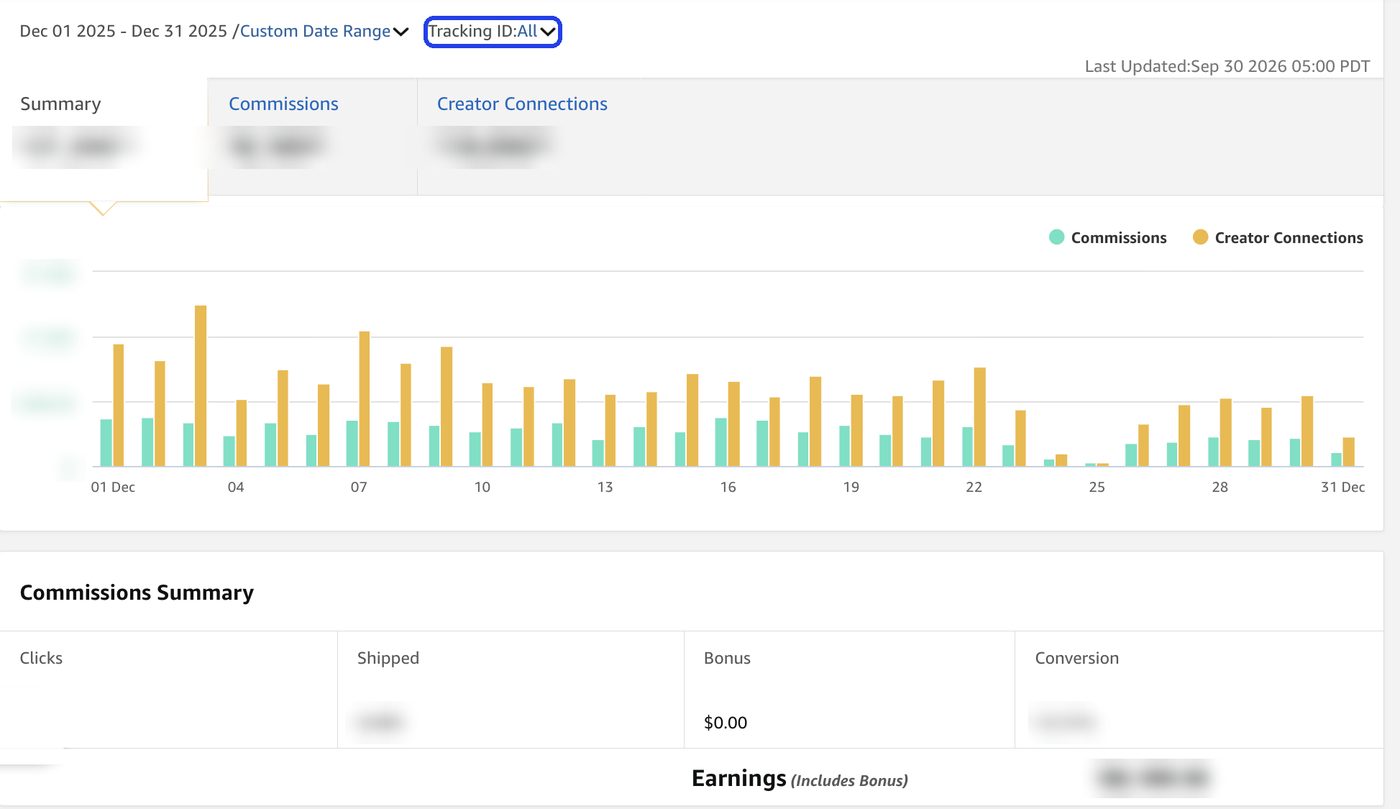
Check it once a week, on a set day. Ten minutes: note clicks, shipped items and earnings, find your top few videos, and ask one question: what should I film more of? Then close the tab and go film. Checking every hour doesn't make it grow.
What normal looks like. Your first few videos will earn maybe a few cents. That's not failure, it's the start. After a couple of hundred well-made videos, you may see a consistent $300 to $500 a month.
Don't stop there. Keep getting better and keep growing the catalog. That's how it compounds.
When something looks wrong
These are the problems we see asked about every week. Each one has a usual cause and a first thing to check. Work through them in order before you change anything.
"I have onsite sales but no money"
There are two usual causes:
- Payment and tax aren't set up on your Onsite Store ID (the "onamz" one). It doesn't copy over from your main ID. Switch the StoreID dropdown to your onamz ID, open Your Associates Account, and add your payment method and tax information there. Then check it says Current Tax Status: Completed. Module 2 has screenshots.
- You're looking at the wrong ID. Onsite money only shows on the onamz ID. If you have several IDs, look at them all together in the consolidated view in My Earnings before you decide nothing came in. Check your dashboard
"My video got rejected"
Start with the reason Amazon gives you in Manage Content. Don't guess and re-upload the same video.
What we see most:
- Medical or health claims. This is the big one. "Helps with back pain," "reduces inflammation," "better sleep": any of it can get you rejected.
- Outlandish claims. "The best thing I've ever bought," "life-changing," "will last forever." Keep your review based on what you actually saw and tested, and you'll be fine.
- A barcode (UPC) in the shot. Watch the box and the label on the back.
- Anything that shows a location. An address on a shipping label, a house number, a street sign. Shooting outside is where this catches people most.
The fix: edit those things out and submit again. Better yet, shoot in an environment you control so they never get in the shot. A kitchen can be tricky because there's so much going on in the background, so clear it first. Clean up your visuals before you hit record, so Amazon has nothing to pick up that would block you.
Module 3 has the full list of what gets videos rejected, including the words to avoid.
"My video disappeared from the product page"
It happens. Sometimes it's Amazon's choice, and there's nothing to do about it. But more often it's the seller: they rebuilt their product page, or the product moved to a new ASIN.
Watch for ASIN switching. Some brands move the same product to a new listing. If a product that was selling steadily for you suddenly stops, go and look at it. Search for the same exact item from the same exact seller. If there's a new product page for it, they've switched the ASIN.
The fix: edit your video and change its product tag to the new ASIN. Your video goes back to earning on the page where the sales are now.
"I made a sale and it's not showing"
- It hasn't shipped yet. This is the usual one. Earnings count when the item ships, not when it's ordered. So you can see clicks and orders that you know converted, and still not see the commission for a while. Not everything ships with Prime speed: we've seen items take a week or two to ship, and sometimes longer, depending on warehouse delays and where the item ships from.
- Reports lag. Give it a day or two before you worry.
- You're looking at the wrong ID. Onsite sales show on your onamz Store ID, offsite ones on your main ID. If you use a tracking ID per platform (Module 8), check the one you used for that link.
- It doesn't qualify. Your own purchases don't count, and neither do sales from paid or boosted ads.
- It came back. Returns take the commission back.
"My storefront isn't showing up"
Your storefront should always be there. If you can't find it, you're usually looking at the wrong country's Amazon. Each country has its own site, and your storefront lives on the one you signed up for:
- US: amazon.com/shop/yourname
- Canada: amazon.ca/shop/yourname
"yourname" is your storefront name, the account name you picked when you signed up. If you're on the right site with the right name and it still doesn't load, then contact Associates support, and expect it to take a while.
"My earnings dropped overnight"
Don't change anything for a week. One bad day is noise, and reports for the last day or two are often incomplete anyway. If it's still down after a week, find out which of these it is, in this order:
- Which side dropped? Switch the StoreID dropdown between your main ID and your onamz ID. Onsite down and offsite fine points at Amazon's placements or your products. Offsite down points at your traffic. If you use tracking IDs, you can narrow it to one platform.
- Is it the calendar? Going from Prime Day or Black Friday back to a regular day will always look like a crash. So will January after Q4. Compare with the same month last year, or with the month-by-month pattern in Module 8.
- Did a top earner go away? Take your best-selling products from last month and look them up on Amazon. Out of stock, a changed or merged listing, or a big price jump will take its commissions with it.
- Is it Creator Connections? The bonus stops the day a campaign ends, and when Amazon changes CC itself, as it did in September, everyone's CC income moves at once (Module 6).
- Are the clicks down, or the sales? Look at clicks and orders side by side, day by day, across all your IDs and links. Clicks down means fewer people are reaching Amazon through you: a traffic or placement problem. Clicks steady but fewer orders means people arrive and don't buy: look at price, stock and the product page.
- Did Amazon change a rule? Check the announcements on the Associates Central homepage and Amazon's page of Operating Agreement changes. When a rule changes, everyone's numbers move at once, and the Facebook groups will be full of it that same week.
What not to do: don't delete or re-upload videos, don't switch niches, and don't buy a course that promises to fix it. Find the cause first.
"Amazon sent me a warning email"
Take it very seriously, and comply. A warning email is almost always about non-compliance. Whatever it names, fix it, completely.
- If it's about a video, delete the video. Don't try to save it by changing the title or the thumbnail. Just delete it and move on.
- Don't argue with it. Sometimes Amazon is picky, and sometimes the rule is tricky. Comply anyway.
- Don't count on support to explain it. It's very hard to get a straight answer from Amazon support. Big accounts get a dedicated account manager. The vast majority of associates and influencers don't, and that almost certainly includes you.
So the real fix is to not get the email in the first place: stay compliant and play by the rules. "What gets accounts closed," right below, is the list to keep in mind.
What gets accounts closed
Amazon can close your account and keep your unpaid commissions. Read the Operating Agreement and Program Policies once a year; they change. These are the classic causes:
- Buying through your own links (or asking friends and family to)
- Links that hide they go to Amazon, or that hide where the click came from
- Links in ebooks, PDFs, or offline materials
- Offering incentives to use your links
- Missing disclosures
- Showing prices you don't pull from Amazon's tools, or outdated prices
- Fake or incentivized reviews, or undisclosed paid relationships with sellers
- Low-effort, AI-only content with no real commentary (the new "original content" rule)
A note on AI: sellers now have to label images with AI-generated people, and some reports say creators will need to flag it too. Our advice: film real products with real hands. It's what converts anyway.
If your account gets closed anyway
We've had a lot of friends and people along the way who did things Amazon deems non-compliant, and they got banned. It happens.
- You can email support and ask for a review. Be honest about it: it very rarely gets an account back.
- Starting over means a new account on a completely different social media account. You can't reuse the account you applied with before.
- Keep your video files on a hard drive, always. This is one more reason we say it. If something ever happens, you can upload your whole catalog again instead of starting from zero.
Before you start over, read Amazon's Operating Agreement for what it says about applying again after a closure, and fix whatever got you closed first. The same thing on a new account gets the same result.
Don't put all your eggs in Amazon's basket
Amazon changed the rules several times in a single year. We're actively working toward a 50/50 split between Amazon and everything else: brand deals, YouTube, our review blog, and our software. You don't have to start there, but build at least one income stream Amazon doesn't control by the end of your first year.
Avoiding burnout
- Set a weekly rhythm you can keep for a year, not a week.
- Accept the January dip. It's the calendar, not you.
- Measure per-video earnings monthly, not daily. Daily numbers will drive you crazy.
Do this
- Set up your tracking sheet if you haven't (columns above).
- Block two fixed filming sessions a week in your calendar.
- Book a call with an accountant before your earnings get serious.
The plan
Your first 90 days
Everything above, in order, week by week.
5 min read
Print this, or keep it open. The weeks are a guide; move faster or slower depending on your hours.
Got a full-time job? Read this first. The plan below assumes you can give this 10 to 15 hours a week. Most people starting out can't, and we'd rather you run a realistic plan than quit a good one.
If you have about 5 hours a week, run the same plan over six months instead of three. Nothing changes except the pace:
- Days 1–14 instead of days 1–7 for setup. Do the payment and tax interview on both store IDs on the first evening; it's the one thing that costs you real money if you skip it.
- One filming session a week, not two. Saturday morning, same spot, 5 to 8 products in a batch. Edit on a weeknight.
- 30 videos by month 3, 100 by month 6. That's a real catalog, and it's enough to start seeing which products actually earn.
- Start investing at month 4, once you've got per-video numbers to base a budget on.
- Pick one offsite channel and post weekly. Even one a week compounds, because YouTube and blogs are search engines (Module 8).
The only thing we'd tell you not to stretch is the 3 qualifying sales in your first 180 days. That's Amazon's clock, not yours, and it runs whether you're filming or not.
The people who make this work with a day job are the ones who protect one fixed session a week for a year. The ones who quit are the ones who tried to do our schedule on their hours, burned out in six weeks, and decided the program was dead.
Days 1–7: set up
- Payment and tax info on both store IDs, and Current Tax Status says Completed on each
- Every site and social account you'll post links on added to your website list
- Creator Rewards checked, and enrolled if it's offered to you
- A plan to get your first 3 real sales from your own audience
- Storefront profile, bio, disclosure in every social bio
- 3 idea lists from things you own
- Tracking sheet created
- 3 onsite test videos filmed with the 6-step formula, checked against the rejection table, uploaded
Days 8–30: first 30 videos
- Film everything you own that's still sold on Amazon and passes at least half of the product screen
- Batch: 2 filming sessions a week
- Read the Q&A and 3-star reviews before every video
- Tag any video that matches an active Creator Connections campaign
- Start one offsite channel (we suggest YouTube) and post there every week
Days 31–60: start investing
- Calculate your per-video earnings
- Set a product budget as a percentage of your commission
- Buy only products that pass the screen, ideally with a CC campaign that has 3+ months left
- Set up your resale channel and resell products once the content is done
- Deliver on every campaign you accept
Days 61–90: build the business
- 100+ videos live
- Rate card built; pitch 10 brands whose products you've already reviewed
- Q4 list filmed (if you're in the fall)
- Review what earned: double down on the categories and price points that paid, drop the rest
- Book time with an accountant
Last thing. There is no shortcut. Every creator you see making real money in this program did the reps: hundreds of videos, smart product choices, and showing up for brands. It's not complicated, but it's work. If you do the work in this guide for 90 days, you'll know more than most people who've been "doing Amazon" for two years.
Seb & Michelle, Gominplanet
Glossary
Amazon Live: live streams on Amazon where shoppers watch and buy. Creators move up three levels (Rising Star, Insider, A-List), and higher levels get more placement.
ASIN: Amazon's product ID. Each variant (color, size) can have its own.
Associates Central: the desktop dashboard for links, earnings, and campaigns.
Carousel: the rows of videos on a product page. Earlier slots get more views.
Creator Ads: Amazon's higher commission table that applies when your content runs in certain ad placements rather than organically on the product page.
Creator Central: the creator hub inside the Amazon Shopping app.
Creator Connections (CC): brand campaigns that pay a bonus commission on top of your normal rate.
Creator Rewards: an Amazon promotion that pays a flat bonus when your monthly shipped revenue hits targets set for your account. You have to be enrolled.
Deals Hub: the page in Associates Central listing upcoming deals you can promote. It replaced the old promo code page, and deals are embargoed until they go live.
Geo-routing link: a link that opens the right country's Amazon for whoever clicks it. OneLink and MVP's Passport links both do this.
Halo sales: commissions on other items in a shopper's cart. Removed for onsite in April 2026; offsite links still appear to earn them.
Idea list: a curated product list on your storefront.
OneLink: Amazon's tool that sends each shopper to their own country's Amazon store, with your tag for that country.
Offsite: traffic you send to Amazon with your links. Paid at standard rates.
Onsite: your content shown on Amazon's own pages. Paid at onsite rates.
Onsite Store ID: the separate ID ("onamz…") that tracks onsite earnings. Needs its own payment and tax setup.
Shipped revenue: the total value of what shipped through your links in a period. It's sales, not your commission.
SiteStripe: the bar across the top of Amazon when you're signed in to Associates. It makes a link to the page you're on.
Storefront: your page at amazon.com/shop/yourname.
Tracking ID: the tag on your links (it ends in "-20" in the US) that tells Amazon the sale was yours. Make one per platform to see which one earns.
UGC: user-generated content. Videos you make for a brand to use.
Usage rights: what a brand is allowed to do with your content, for how long.
Website list: the sites and accounts you've told Amazon you post links on. Posting links anywhere else breaks the rules.
Whitelisting / Spark Ads: a brand running ads from your account.
Appendix
Sources
Where the rules and numbers in this guide come from (checked September 2026).
Amazon changes things often. When a rule matters to your money, check it in Associates Central first.
Where to start
- Amazon Influencer Program sign-up
- Amazon Associates sign-up
- Associates Central (your dashboard)
- Creator University (Amazon's free training)
- Associates Operating Agreement
Official Amazon
- Associates Operating Agreement: April 14, 2026 changes
- Onsite and Creator Ads commission rates
- Onsite commissions and the Onsite Store ID
- Associates application review (3 sales in 180 days)
- Payment timing
- Program policies
- Amazon Live Levels: Rising Star, Insider and A-List benefits and review guidelines
- Creator Stars: how points and tiers work
- Creator Stars: benefits by tier
- How the Amazon Influencer Program works (Amazon newsroom, Sept 2026)
- Prime Big Deal Days 2026 dates
- FTC: Disclosures 101 for Social Media Influencers
- FTC: Endorsement guides, what people are asking
- FTC: Consumer reviews and testimonials rule
- Pinterest: affiliate link basics
TRYBE
Next step
The tool we built for this
Everything in this guide works by hand. When the busywork starts eating your filming time, this is what we use.
You don't need software to start. Film, upload, tag, repeat. That's the job for your first 100 videos.
But somewhere after that, the filming stops being the hard part. It's everything around it: finding products worth buying, keeping up with Creator Connections campaigns and their end dates, messaging brands, turning one review into a YouTube video, a Pinterest pin, a blog post and a social post, writing every title and description, adding every disclosure. That's where our hours were going.
We sell software, so read this next bit with that in mind. There is no shortcut that makes you more money onsite. None. What you can do is save your own time and grow your offsite commissions faster, and that's what our software is for. No tool can promise you instant riches, and everything in this guide works without one if you put in the work.
So we built MVP Affiliate for our own business. It's the tool we use every day to run Gominplanet. Full disclosure: it's ours, and yes, we'd love for you to use it. But this whole guide works without it, and we meant every word of it either way.
What it does
- Deal Radar and full-catalog product research: price, sales velocity and competition in one view, so you can run the Module 4 screen in seconds.
- Creator Connections finder, plus a daily digest of campaigns picked for you.
- Brand Deals: long-form outreach emails drafted for you, and unlimited Creator Connections messages.
- Art Director thumbnails and designs with your own face on them for Pinterest, Instagram, and Facebook.
- Auto-posting to Pinterest, Instagram, and Facebook, with AI captions and your affiliate link.
- Shoppable link-in-bio page that sends your audience from any platform to your latest reviews.
- And more: video scripts built from a product's pain points, features and benefits (Module 3), Deals Hub posts you write early and schedule for the moment the deal starts (Module 8), blog posts written in your real voice, Video-to-Blog, Clip Factory for turning long videos into shorts, and posting to more networks.
Who it's for
- You have 100+ videos and you're making some money (Module 4's rule applies to our tool too).
- You want offsite traffic and brand deals, not just onsite.
- You'd rather spend your time filming than copying, pasting and formatting.
Join MVP
One plan, everything included. Every member gets the whole product from day one: no free tier, no upgrades to unlock.
7 days free on the monthly plan. Your card is taken when you join, but nothing is charged until day 8, and if you cancel before then you pay nothing. One free week per creator. The yearly plan has no free week and is charged when you join.
Your first week runs at a quarter of each monthly allowance, and the rest opens on day 8.
The price is on the pricing page, and the price you join at is locked for as long as you stay subscribed. It goes up for new members on January 1, so joining before then keeps today's price.
Not ready for software yet? Come and ask us instead. Our private Facebook group is where Amazon Influencers compare what is working right now, and where we answer questions in public so everyone gets the answer.
Built by Seb & Michelle of Gominplanet. We use it every day.
What changed, and when
Every update to this guide, newest first, so you can see what's different since your last visit.
- October 19
- Creator Stars, Amazon's Bronze, Silver, Gold and Platinum tiers: how points are earned and expire, what each tier takes in sales, and what it actually gets you, from Amazon's own pages. TRYBE: what the creators doing well on TRYBE do (picking brands that spend, your sample score, different hooks, reading your numbers, volume, retainers), what the terms say about keeping samples and usage rights, and TikTok Shop alongside Meta and AppLovin.
- October 18
- How MVP helps, on two more modules: Creator Connections (the campaign finder, the daily digest, filtering on how long a campaign has left, and why joining stays your own press) and paid brand deals (pitches drafted in your voice, and the brand recap that gathers every link you published for one brand into a single message). Arriving from a link that points at one module now says which module you landed on, with a way back to the start.
- October 17
- A new YouTube module: our YouTube story (a dormant channel to monthly AdSense in about eight months), what YouTube does for us (a searchable library that brings brand deals, and now ad revenue), posting every Amazon review there, our title formula, description layout, tags, thumbnails, the Studio settings we use, Shorts from every review, the four things every video needs, your links, the Partner Program levels, and how MVP helps.
- October 16
- A new TRYBE module: making ad videos for brands, how you get paid (commission, retainers, contests), who it's for (anyone: no follower minimum), the editing style it takes, hooks, what to do when a brand rejects your videos, staying out of sample jail, taxes, how it fits next to Amazon and why one video won't do both jobs, what to check before you say yes to a brand, and where we are with it.
- October 1
- Facebook, updated: two ways to run it (Page only, or Page plus Group), what we do, promoting your Page vs boosting link posts, the Digital creator myth, and filling Group posts with SCOUT. A new Facebook module: Pages vs Groups vs creator profiles, Meta's link limit and what counts, what Meta Verified does and doesn't do, posting deals with MVP, and growing your own Group.
- September 30
- Click by click, with screenshots: uploading, making an idea list, and reading your reports, plus what normal earnings look like at the start. Tagging: where your video shows up. A title formula for the product page. Three more rejection reasons (other platforms' watermarks, heavy on-screen text, box-only videos). More on applying if you're rejected. The US 1099 threshold. A reading time on every module, and the one-page checklist.
- September 29
- Six of our real reviews, playable in Module 3. Value over volume and how long videos should be. Quick answers for beginners, including LLCs, working from outside the US, reusing videos, faceless accounts and shoppable photos. Seasonal idea lists. OneLink and Passport links. If your account gets closed, and when to hire help.
- September 28
- Disclosing the way the FTC asks.
- September 25
- A new Amazon Live module. When something looks wrong, with fixes for the problems we see every week. The Deals Hub, now that the promo code page is gone. One tracking ID per platform. A search box.
- September 24
- You got the confetti. Now what?, step by step with screenshots. Creator Rewards, the sixth income stream.
This guide keeps changing, because the program does.
Amazon moved the commission rules twice this year and changed what counts as a qualifying sale. Every time that happens we rewrite the part of this guide it broke, rather than leaving last year's advice up. Worth coming back to.
Nothing to subscribe to and nothing to join. Bookmark it, or see what changed when you come back.